
Infobox Overview
Learn about selecting from the model, view options, and system-specific functions.
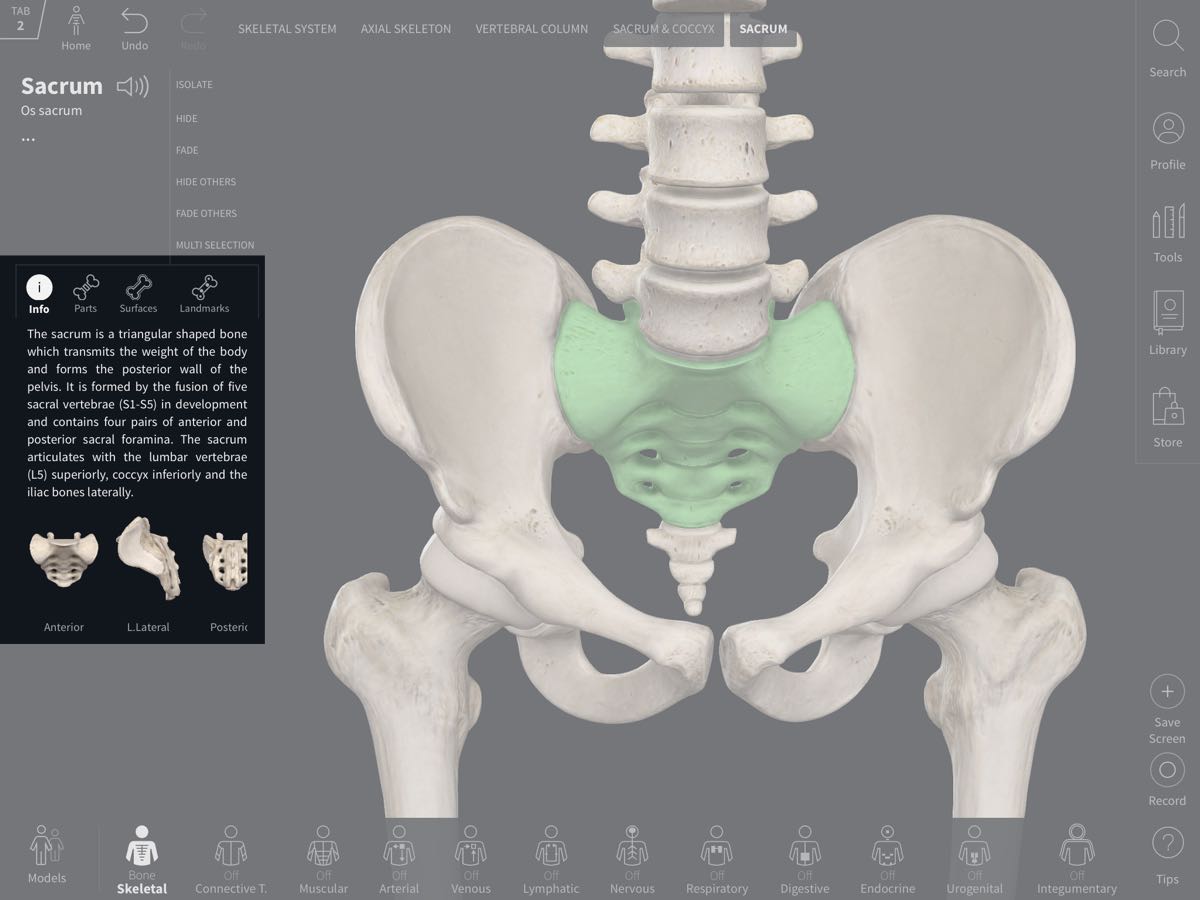
Accessing the Infobox
The infobox appears when structures on the model are selected, and contains detailed information about those structures. The title of the structure appears at the top of the infobox in English and Latin. You can also listen to the sound of the word by tapping on the speaker icon.
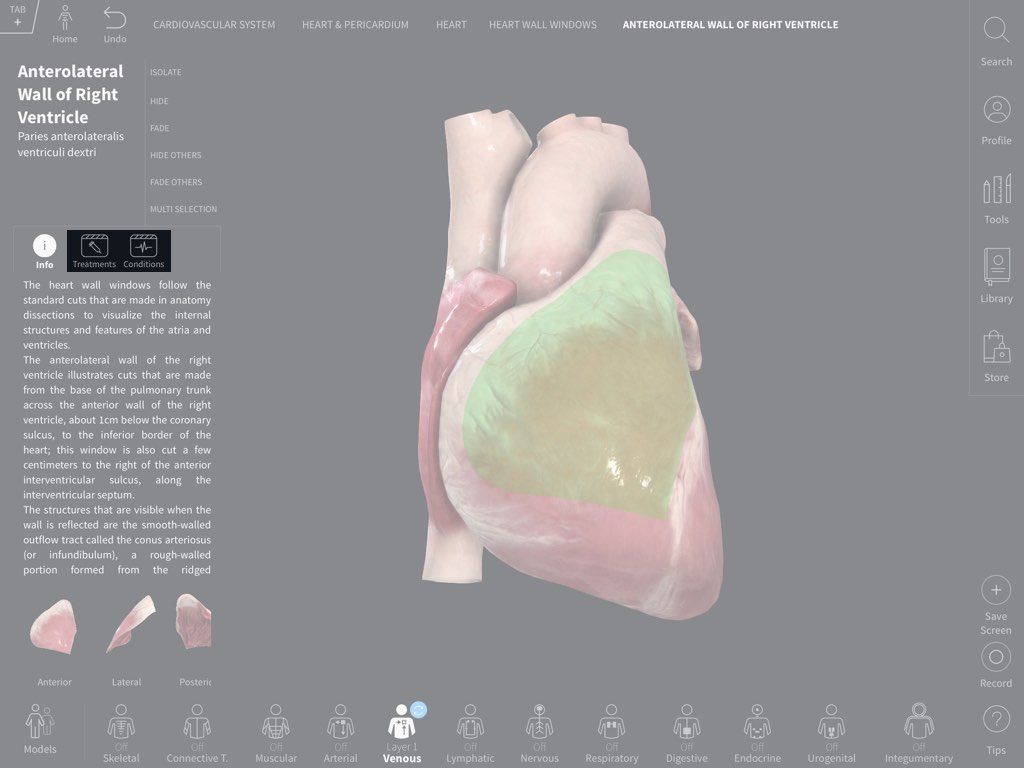
Videos
Certain parts of the model will have videos associated with them, and will appear alongside the other tabs in the infobox.
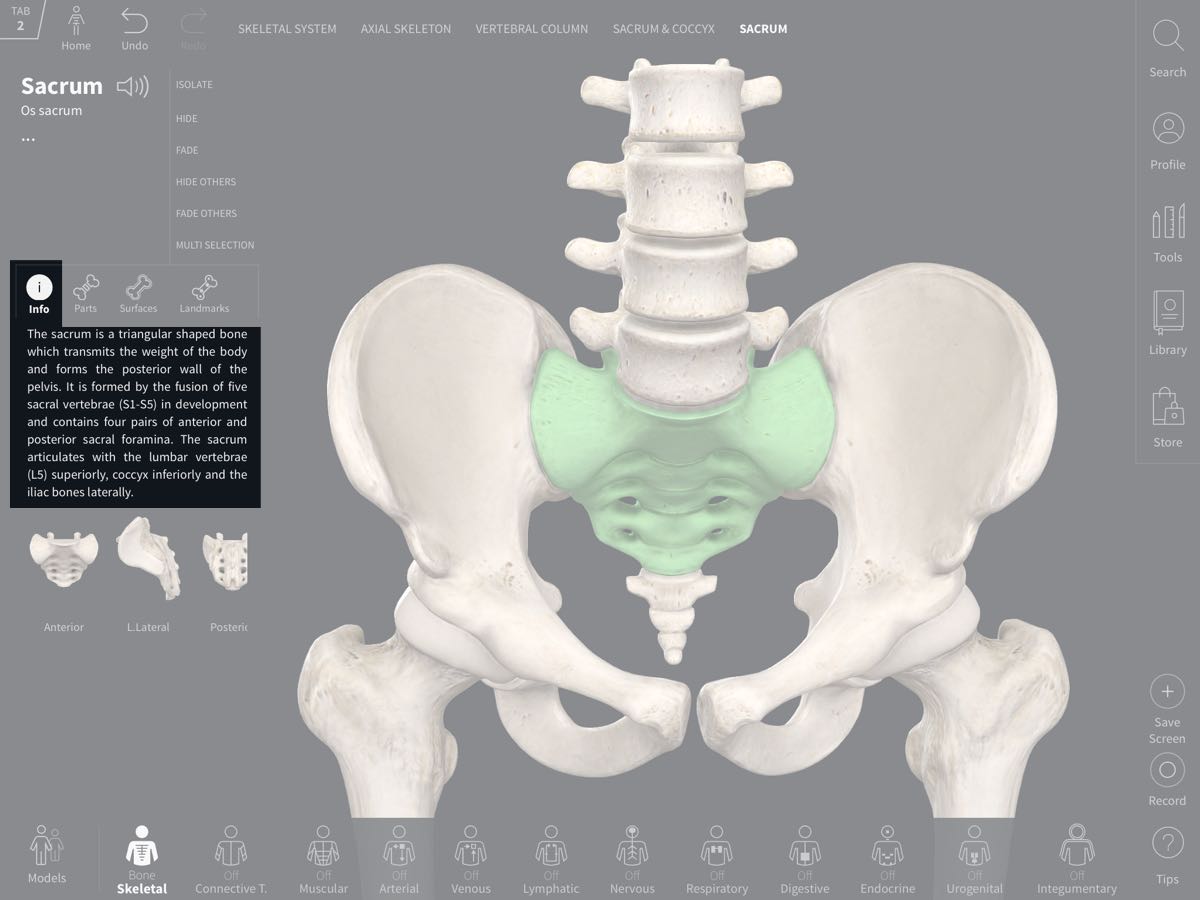
Info
Underneath the title you will see information on the structure, and system-specific tools such as Muscle Motion, Origin and Insertion, and Bone Parts and Surfaces, depending on the type of structure selected.
Alternative Names
If your selected structure has eponymous or alternative names, three dots will be displayed under the structure title. Select these dots to see those other names.
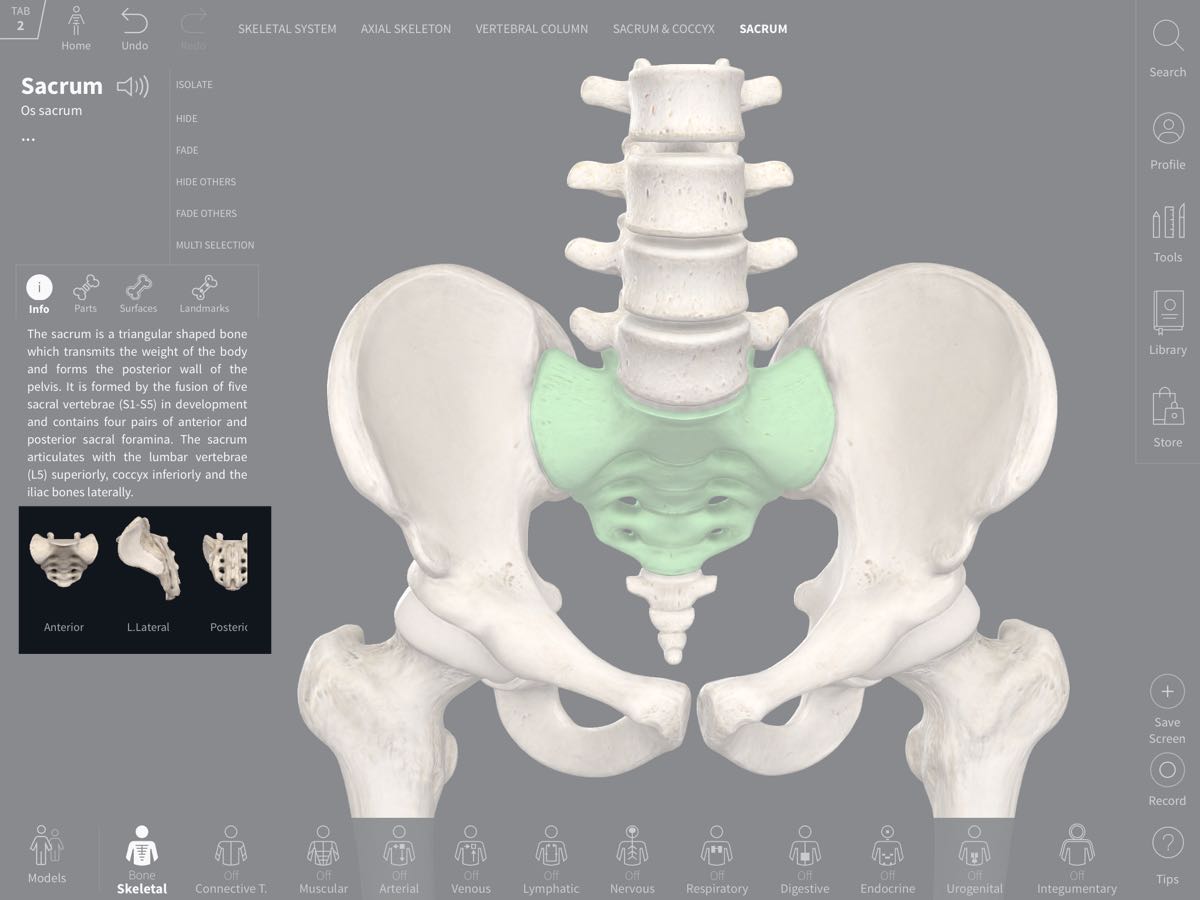
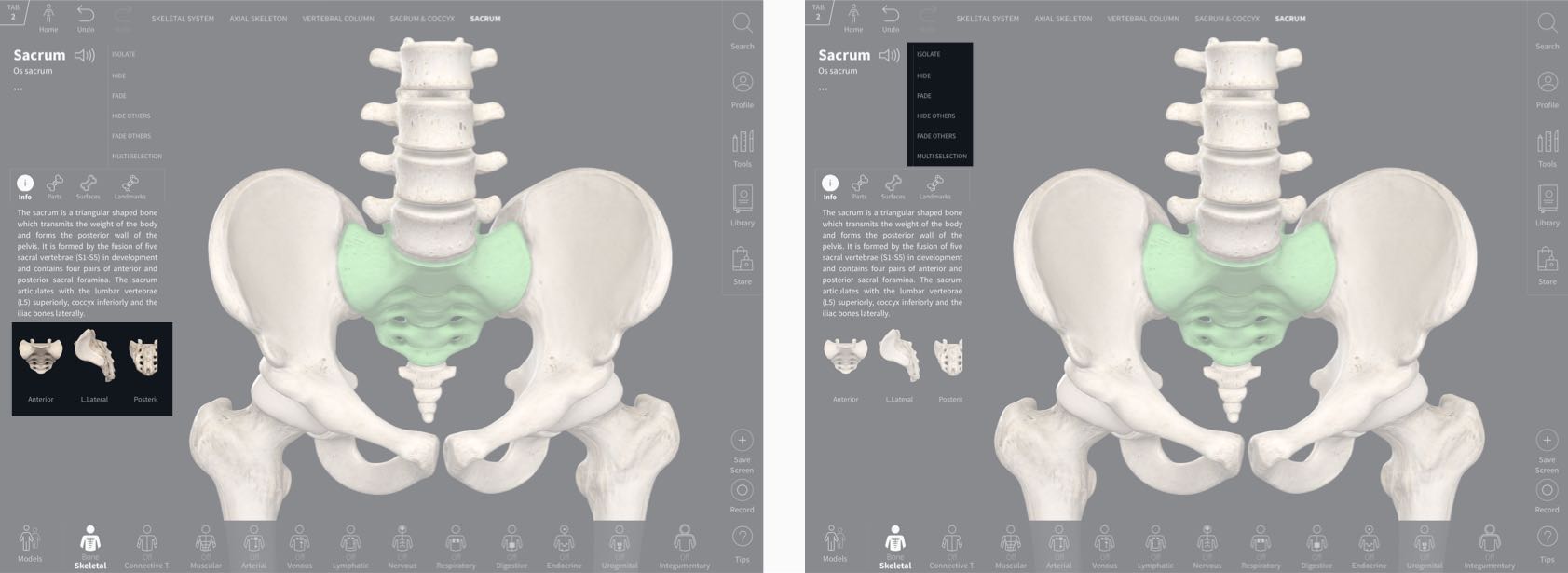
Preset Views
At the bottom of the panel you can access preset views of the selection using the thumbnails displayed.
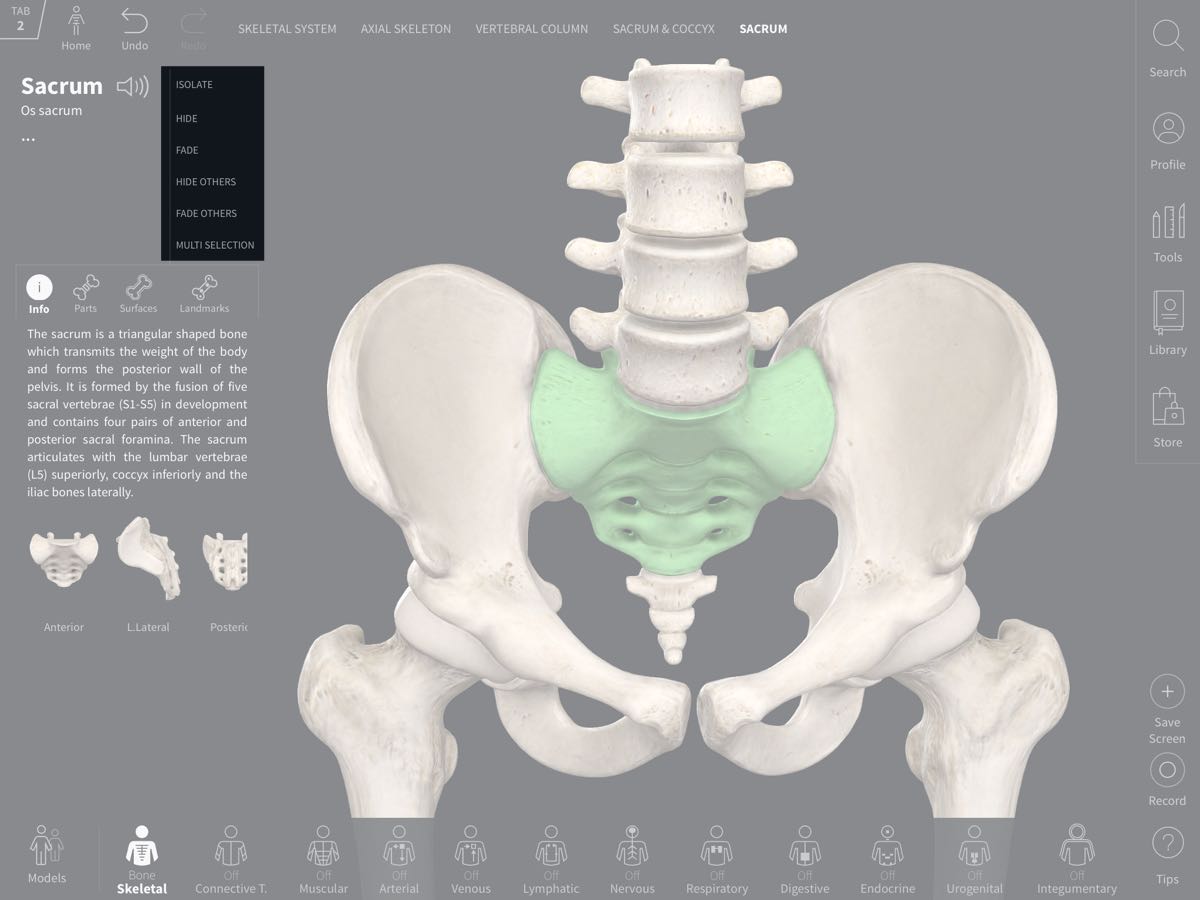
View Options
On the right-hand side of the infobox are the View Options. These allow you to customise your view of the selection with a number of different effects. To undo any of the view options, simply tap that option’s button again. Alternatively, you can reset the views of all structure in a system using the Systems Menu, or reset all structures (including Tool edits) using the Reset button.
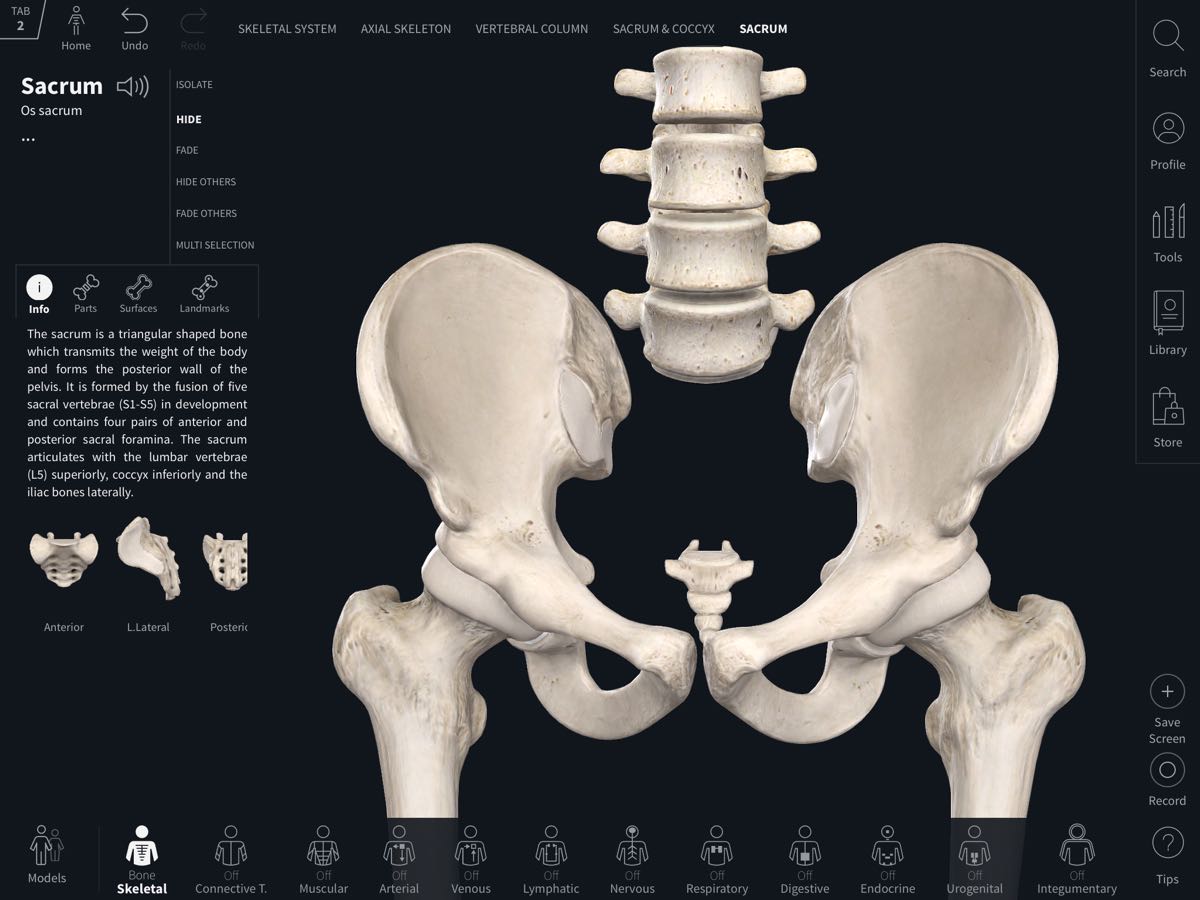
View Options: Hide
Hide removes the selected structure from view.
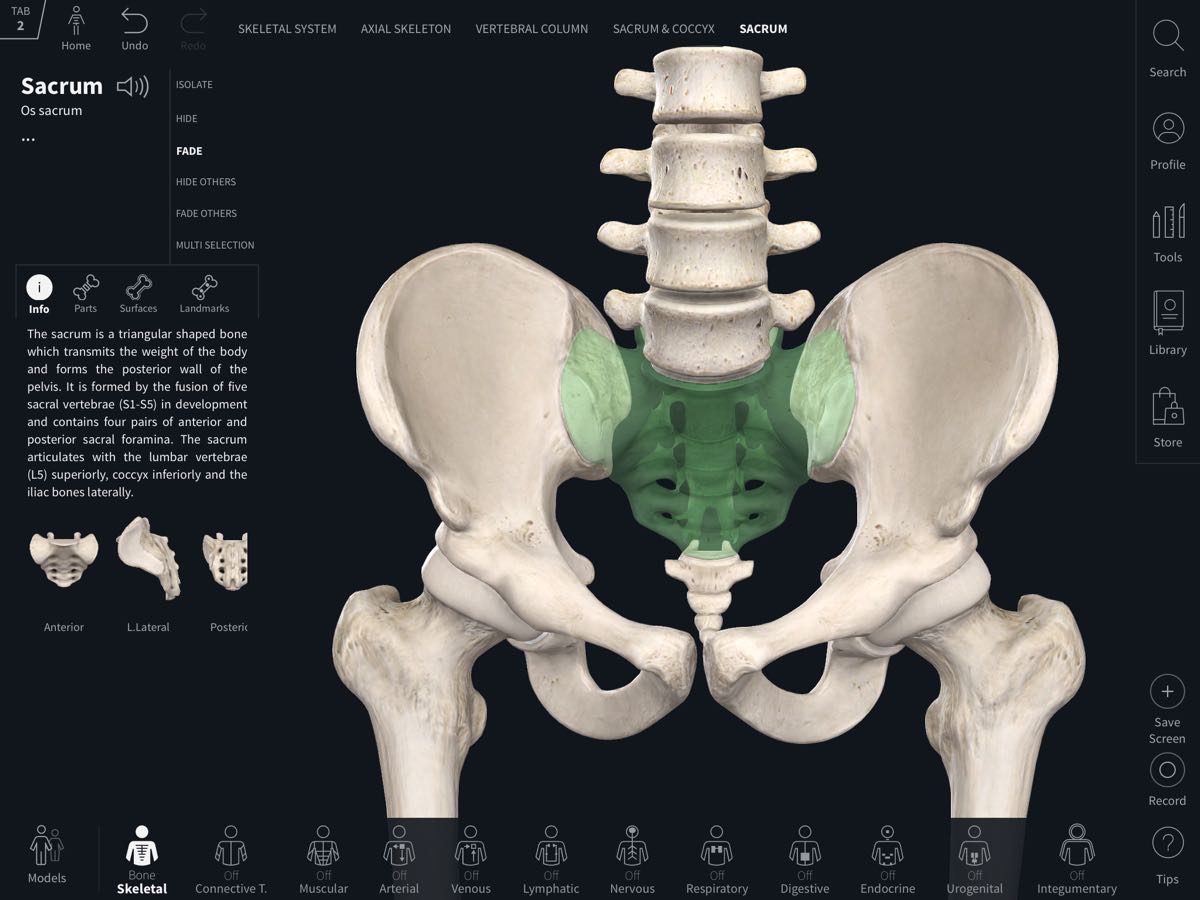
View Options: Fade
Fade makes the selected structure semi-transparent.
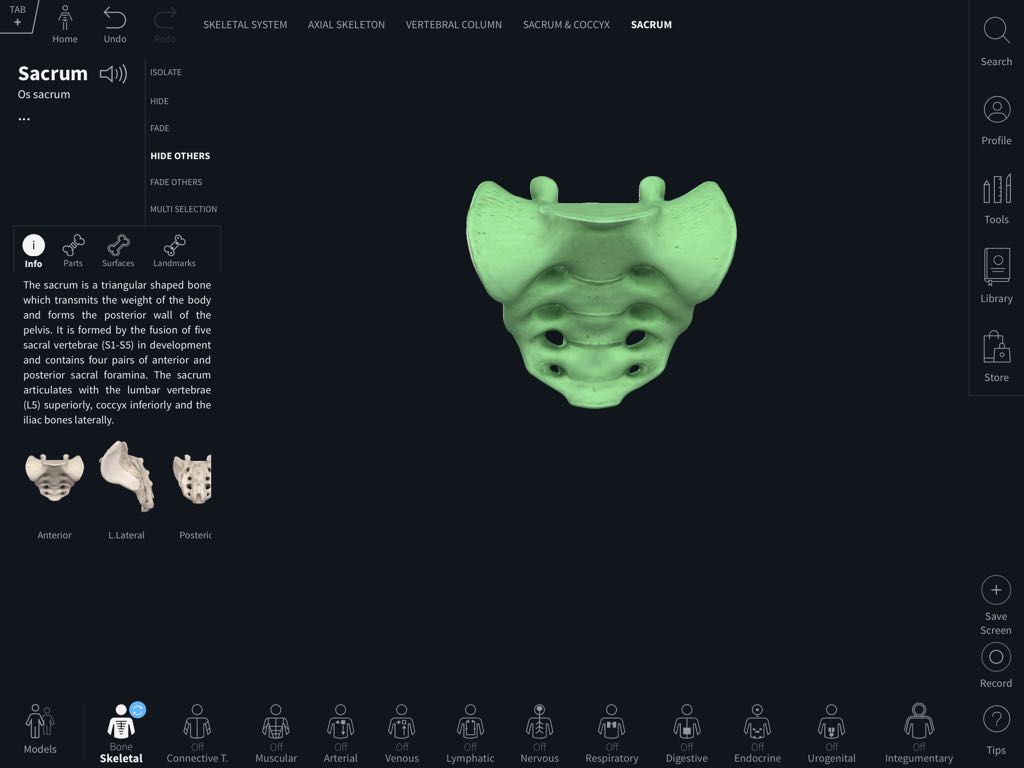
View Options: Hide Others
Hide Others hides all other structures from view.
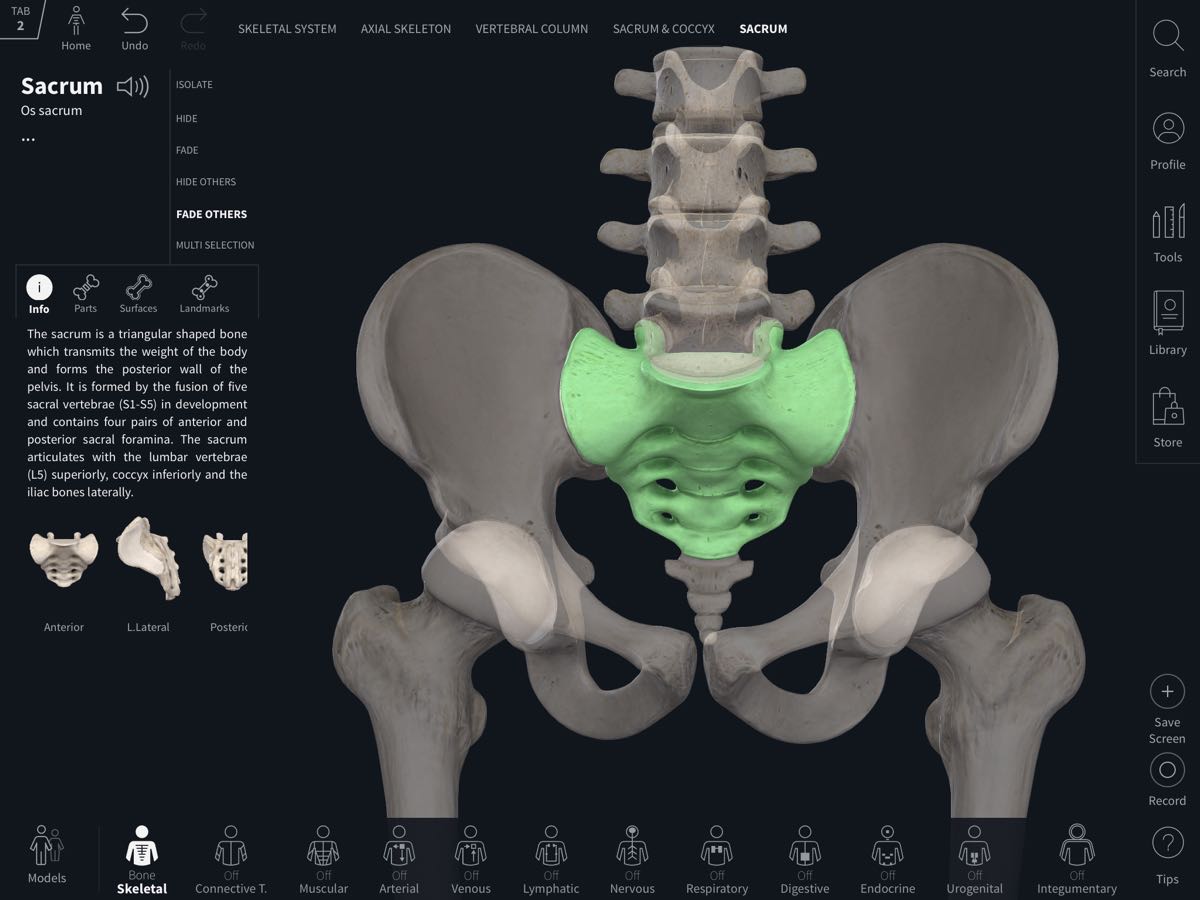
View Options: Fade Others
Fade Others fades all other visible structures
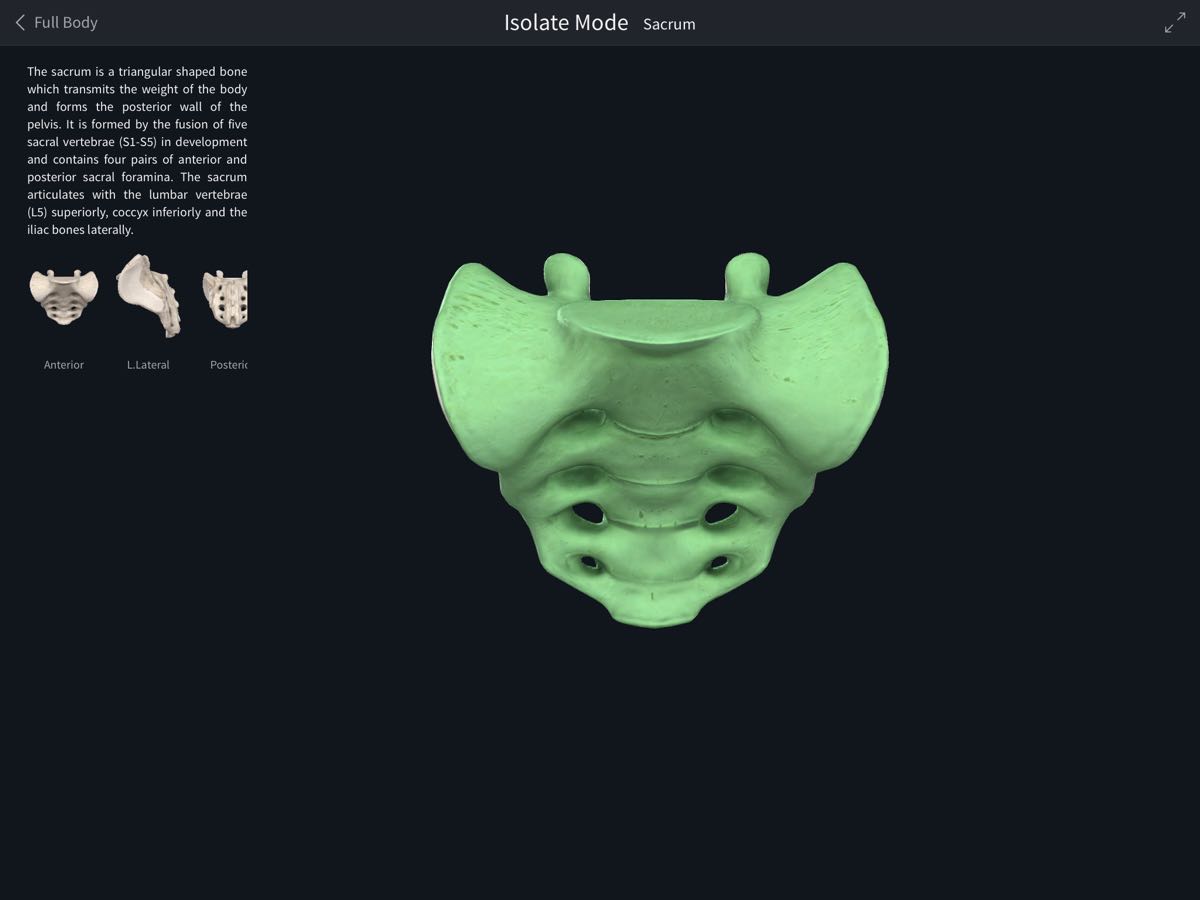
View Options: Isolate
Isolate brings you into Isolate mode, allowing you to view your selection in detail without additional structures. Tap the Back button to return to the main screen.
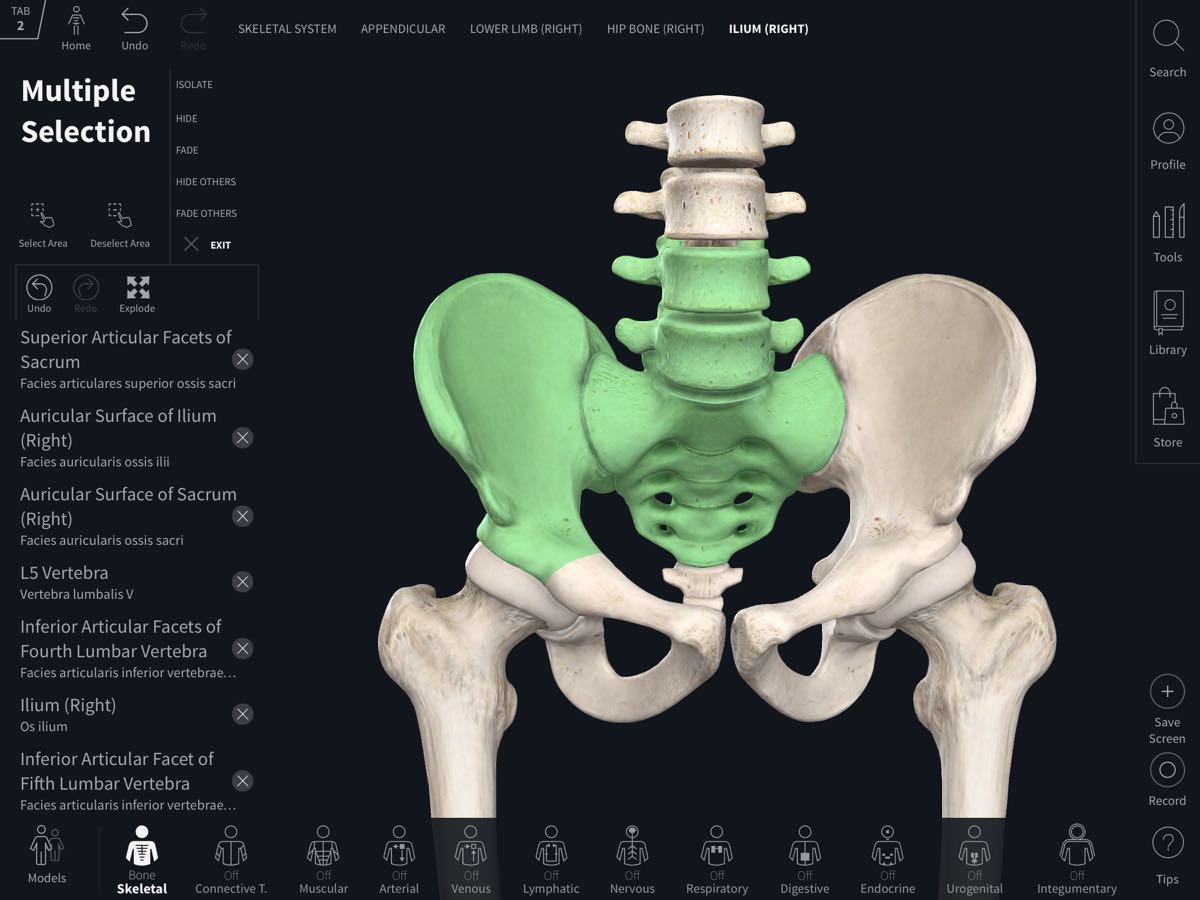
Multiselect
Multiselect allows you to group structures together for quicker navigation, and also allow you to apply View Options to the whole group at once. Learn more in the Multiselect tutorial.
Controlling View Options with Surface Dial
View Options can also be selected using the Surface Dial with Windows 10 devices. While a structure is selected, press the Dial and the menu will appear. Rotate the Dial to choose which of the View Options you would like to apply, and press to select it.