
Radiology
Explore a suite of radiology images and correlate their structures to the 3D model
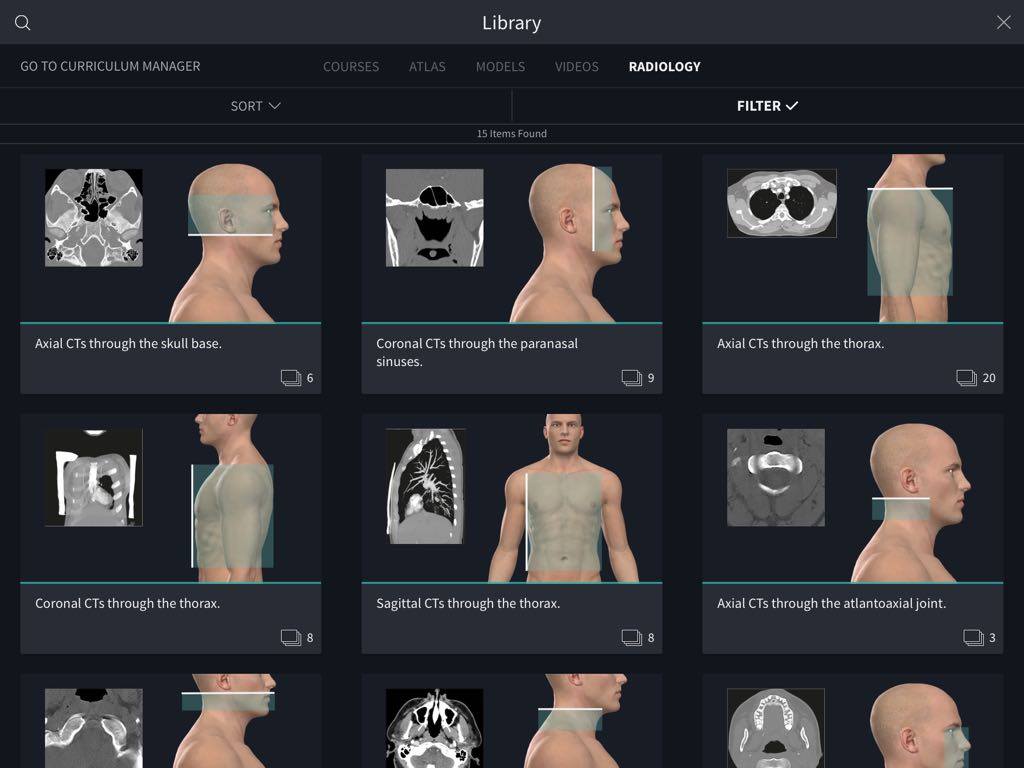
Access Radiology
To start, select the Radiology button from the Hub. From here you can browse our full selection of radiology images.
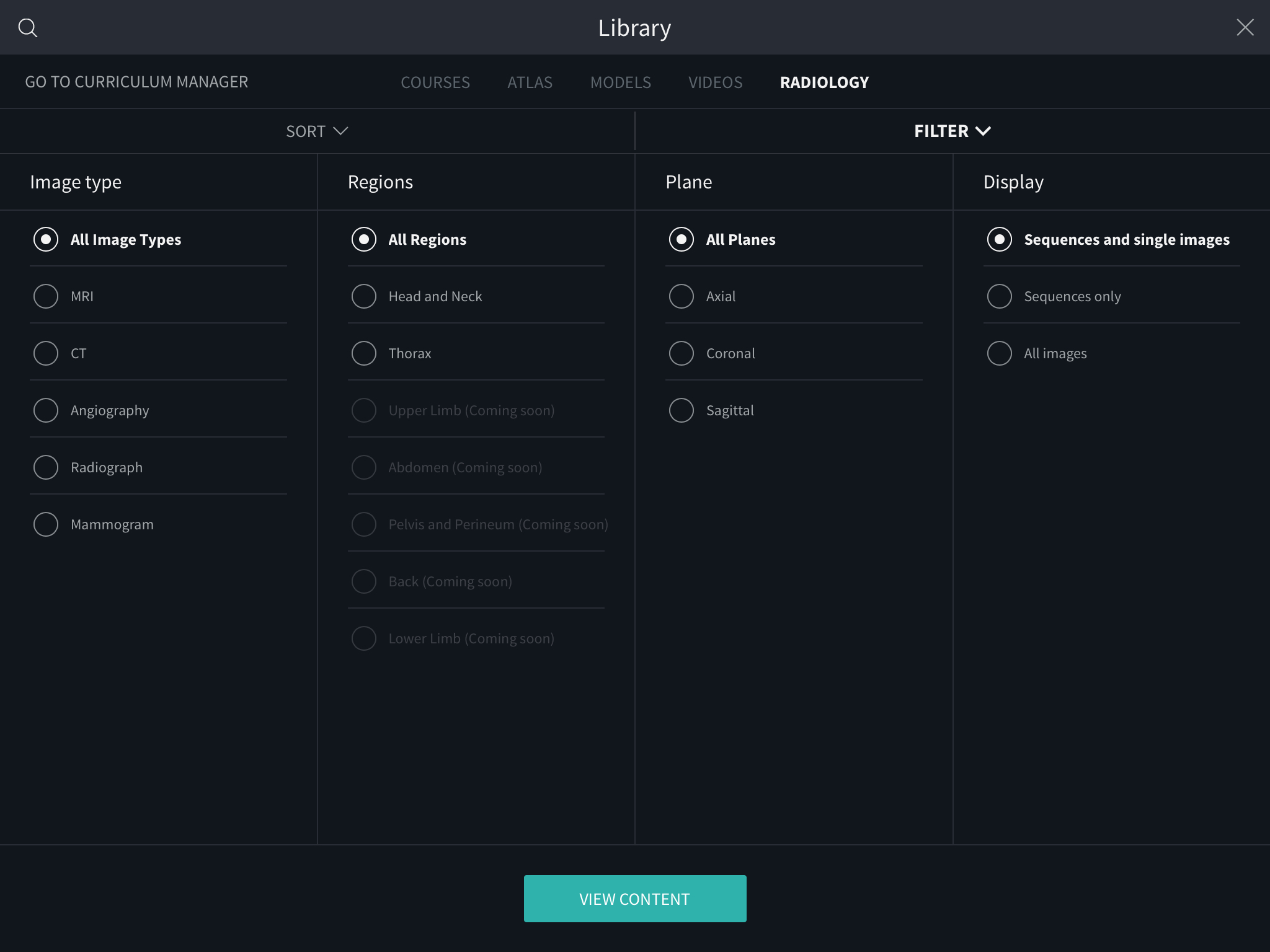
Filter Radiology Images
Filter by specific image types and more in the Filters panel. Choose from MRI, CT, Angiography, Radiograph or Mammogram. You can also filter by regions, anatomical plane, or choose only to view images in sequence.
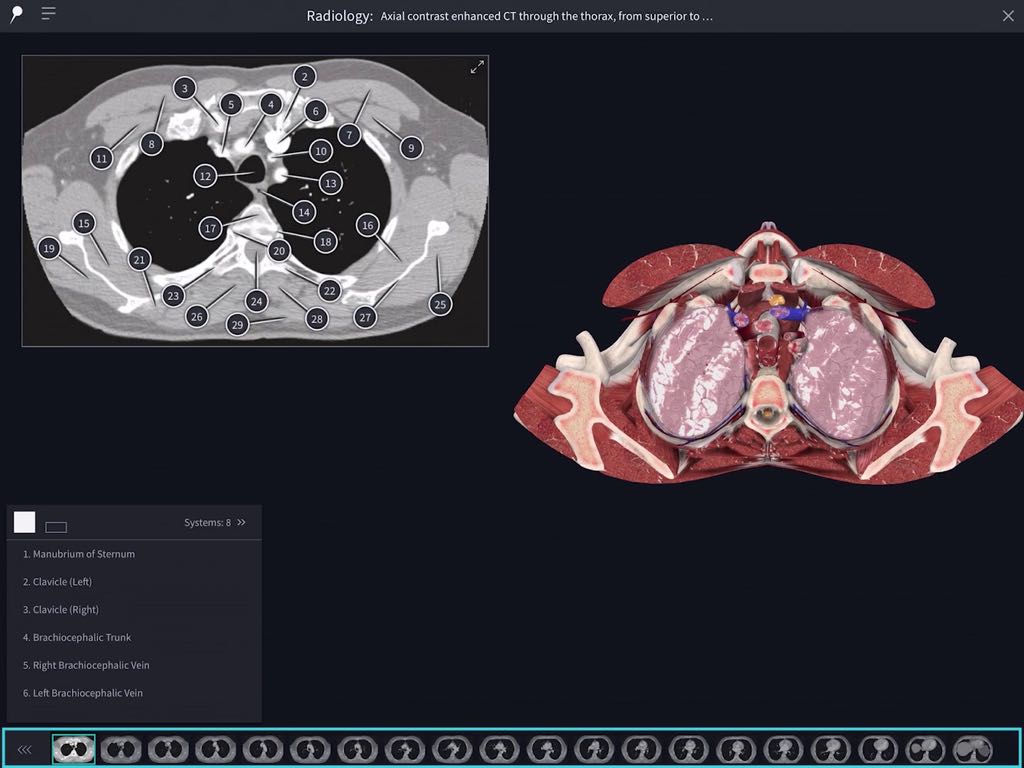
Sequence Bar
For images that are part of a sequence, the Sequence Bar at the bottom of the screen makes it easy to move about to other images within the sequence.
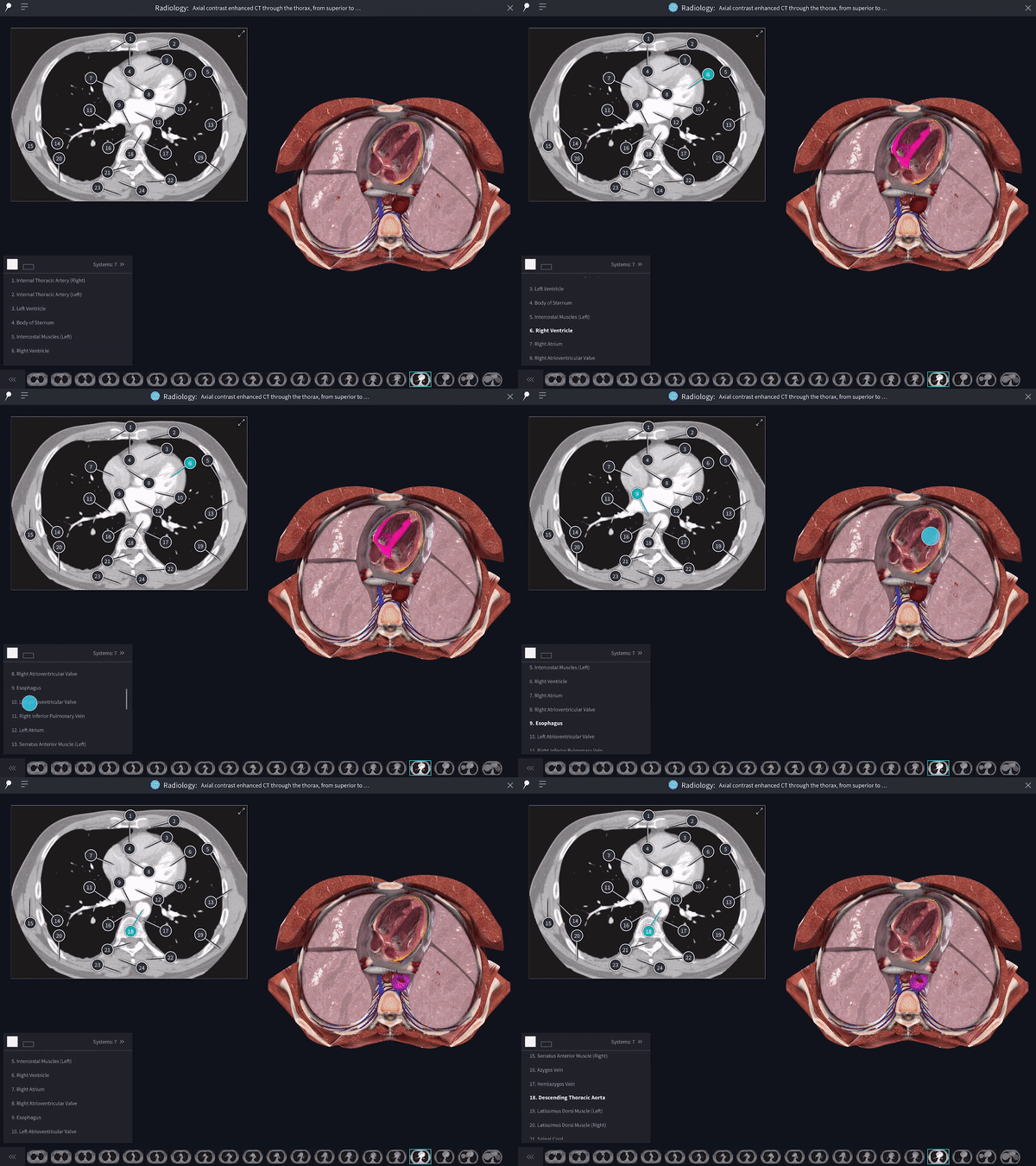
Correlate structures
There are 3 ways you can correlate a structure in an image:- – Select a pin on the image
- – Select a name on the list
- – Select a structure on the 3D model
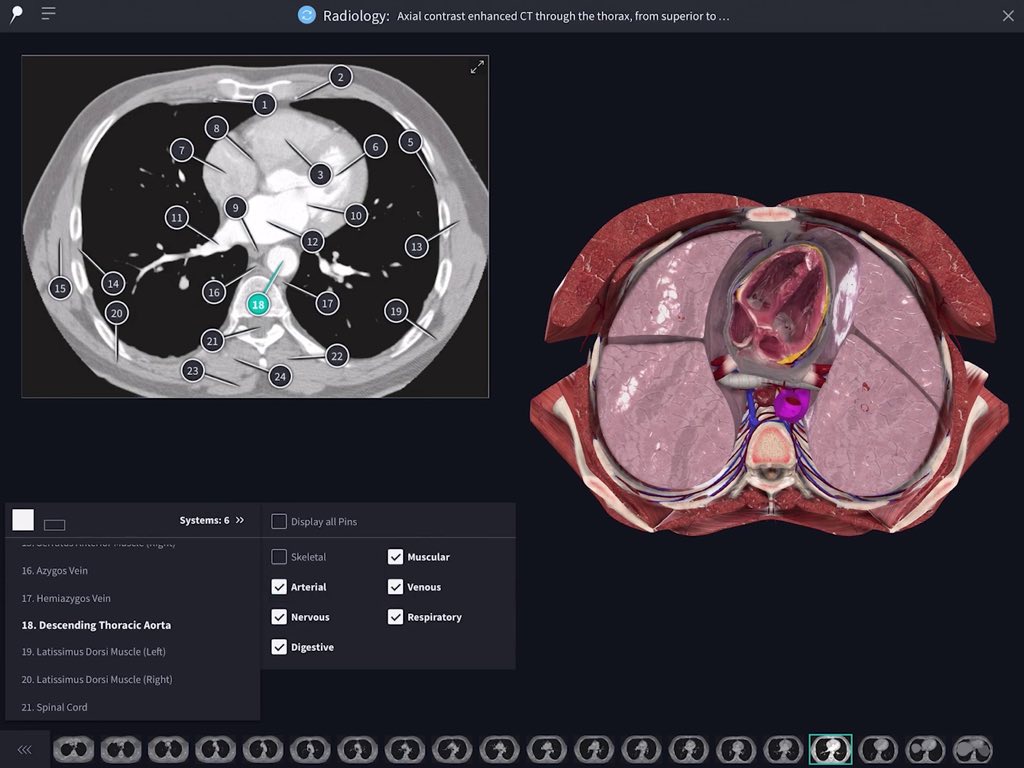
Filter pins by body system
Turn your focus to structures related to specific body systems using the Systems Tray on the List Component.
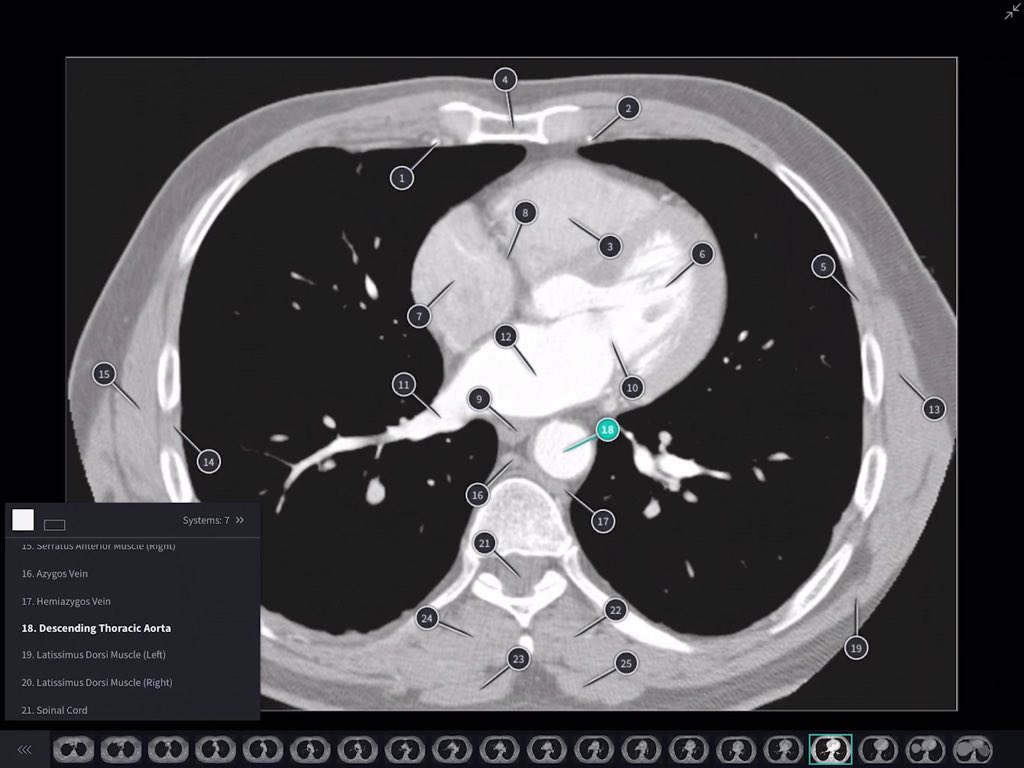
View the image in greater detail
Examine the image in greater detail by entering Expanded View using the button on the top-right of the image.
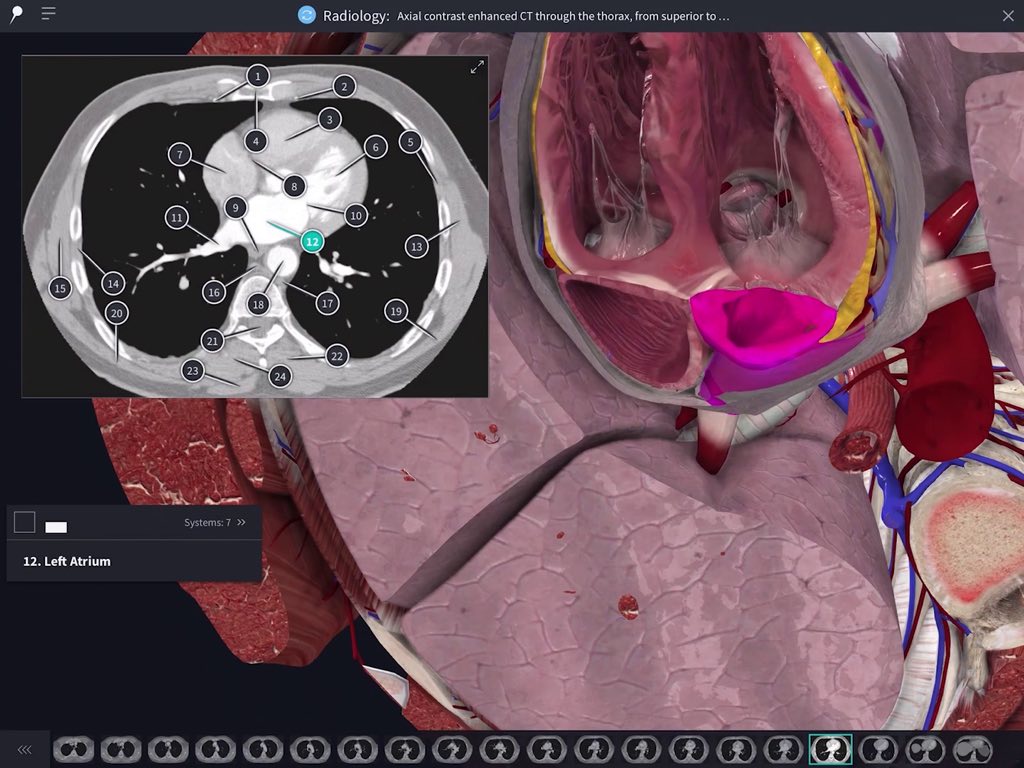
Focus View
Test yourself by collapsing the list to Focus View, and try to guess the structures before selecting them to reveal the name. Alternatively, simulate a real exam situation by turning off pins altogether from the Top Bar.
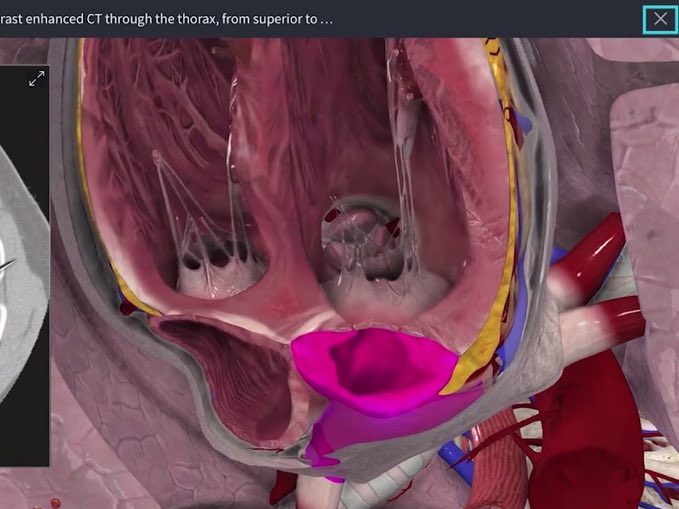
Exit the Radiology Image
Return to the Library at any time by hitting the Close button at the top-right.