
Cut & Dissect
Cut through the model to explore the relationships between structures, and even simulate surgical procedures
iPad, Mac, and Windows feature
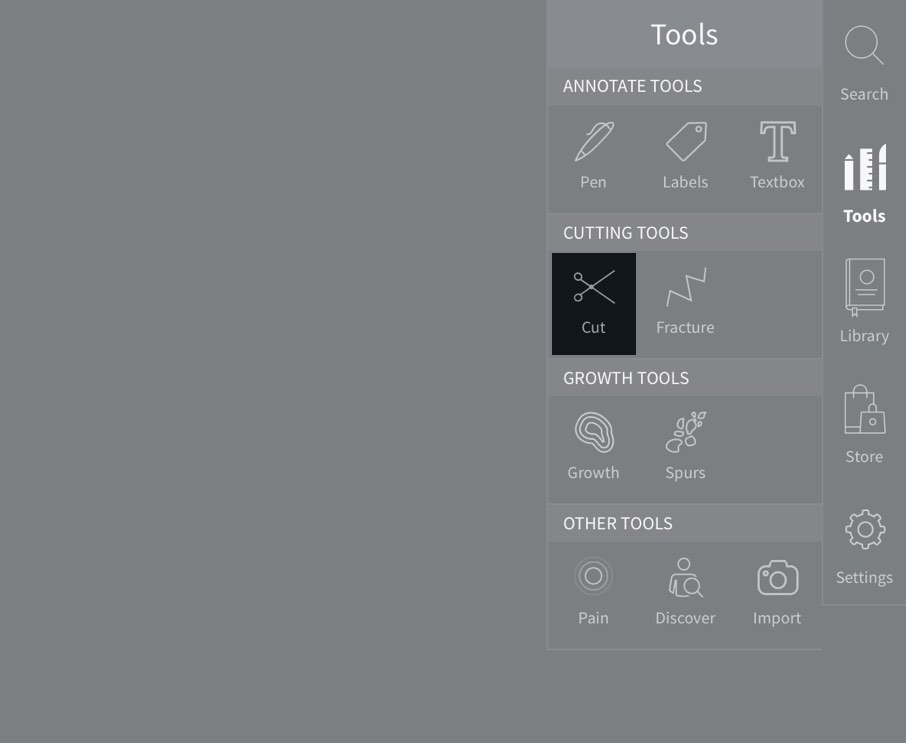
Access Cut
To begin adding cuts, select Tools from the main menu, and select Cut from the Tools menu.
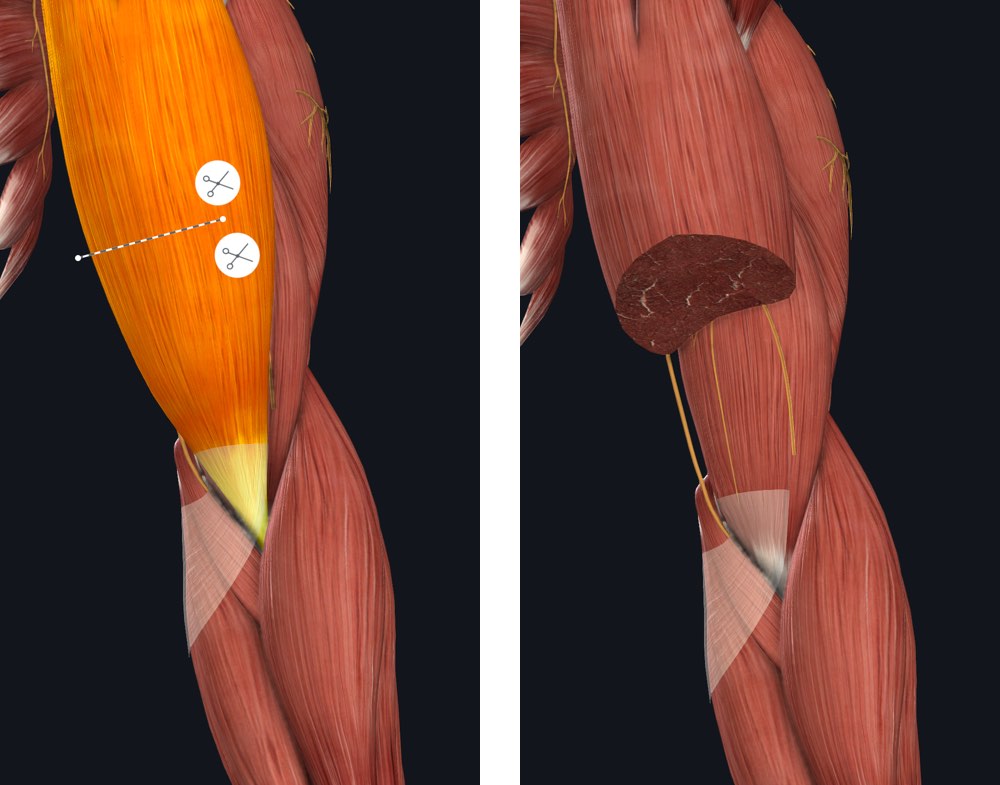
Using the Cut Tool
Start a cut by dragging a line across the section of the model you’d like to cut. When you have completed your line, you’ll be given the option to cut either side of that line.
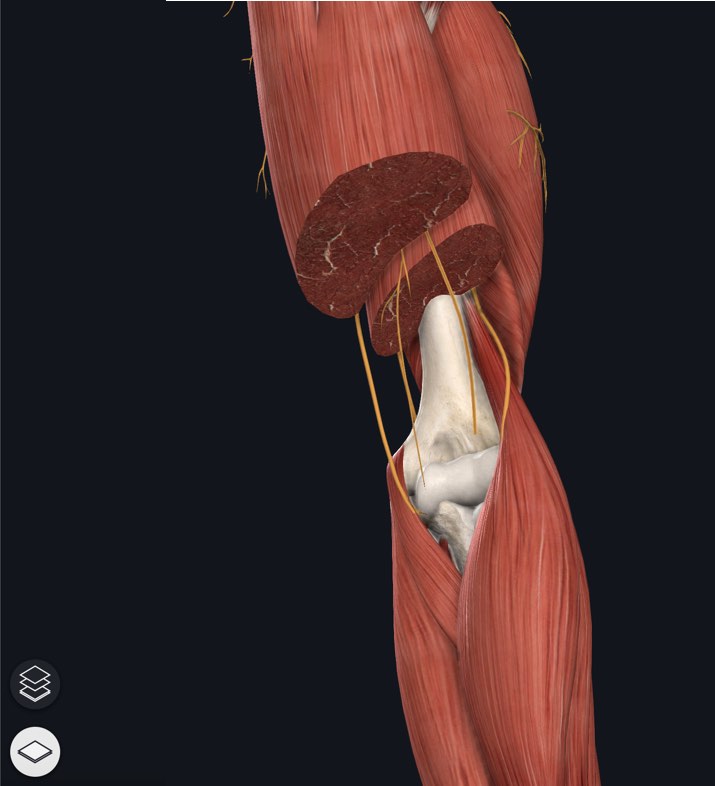
Cut Multiple Structures
Choose to cut only one structure at a time or multiple structures using the controls in the bottom left corner of the screen. When you draw your cut lines, the structures that will be included in the cut are highlighted, so you can see a preview of the scope of your choice.
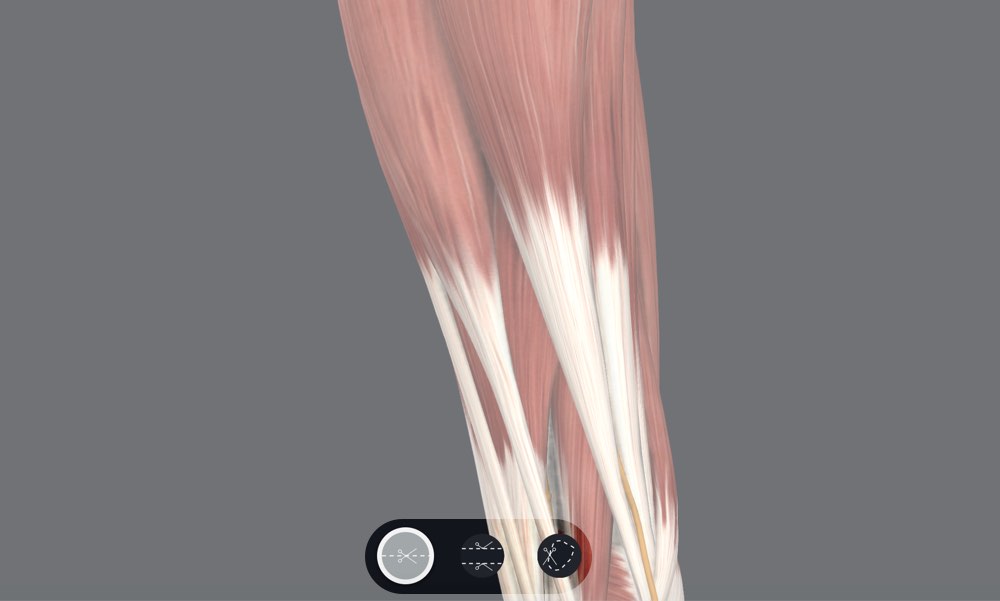
Cut Options
Along the bottom of the screen are the Cut Options. By default, the cut line is chosen. Two other options are available.
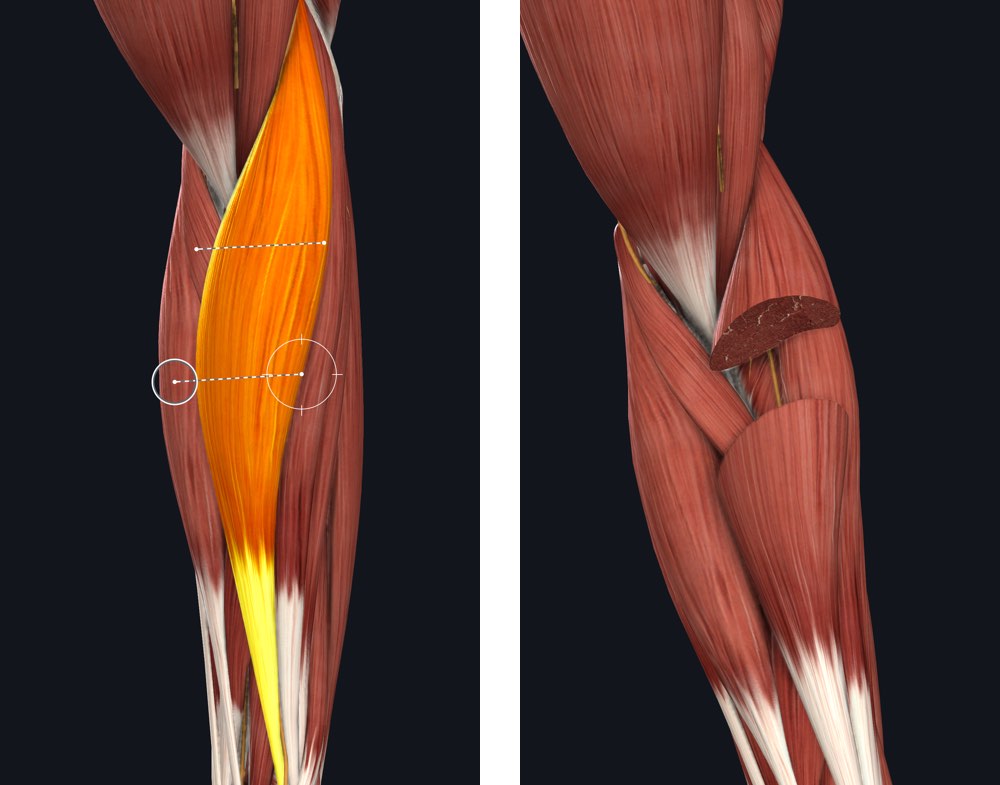
Cut Between
Draw two lines on the model, and have the section between them cut away.
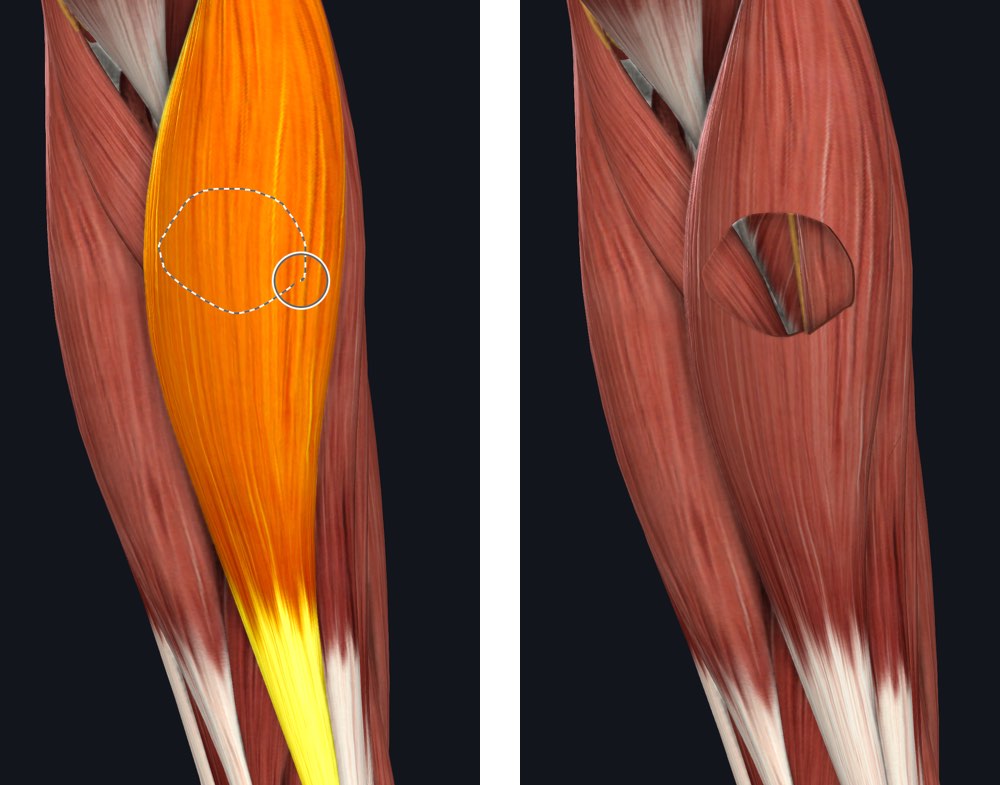
Cut Hole
Draw a circle on the model, and have its contents cut away.
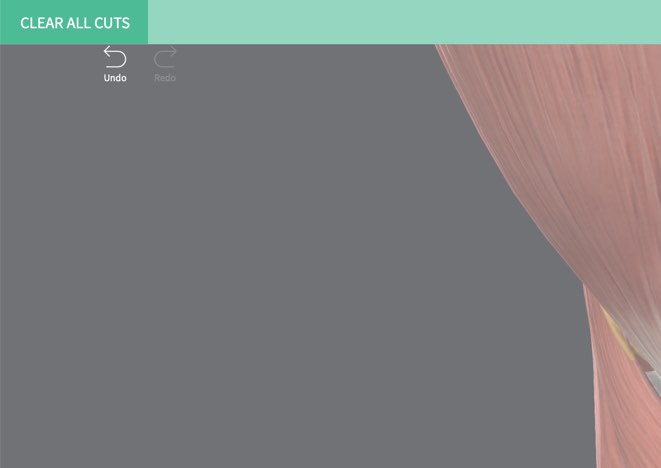
Clear Cuts
When using the Cut tool, tap the ‘Undo’ button in the top left corner of the screen to remove a cut. At any point, select the ‘Clear All Cuts’ in the top left corner to clear all cuts.