
Sketch
Sketch your thoughts to remember key details
iPad, Mac, and Windows feature
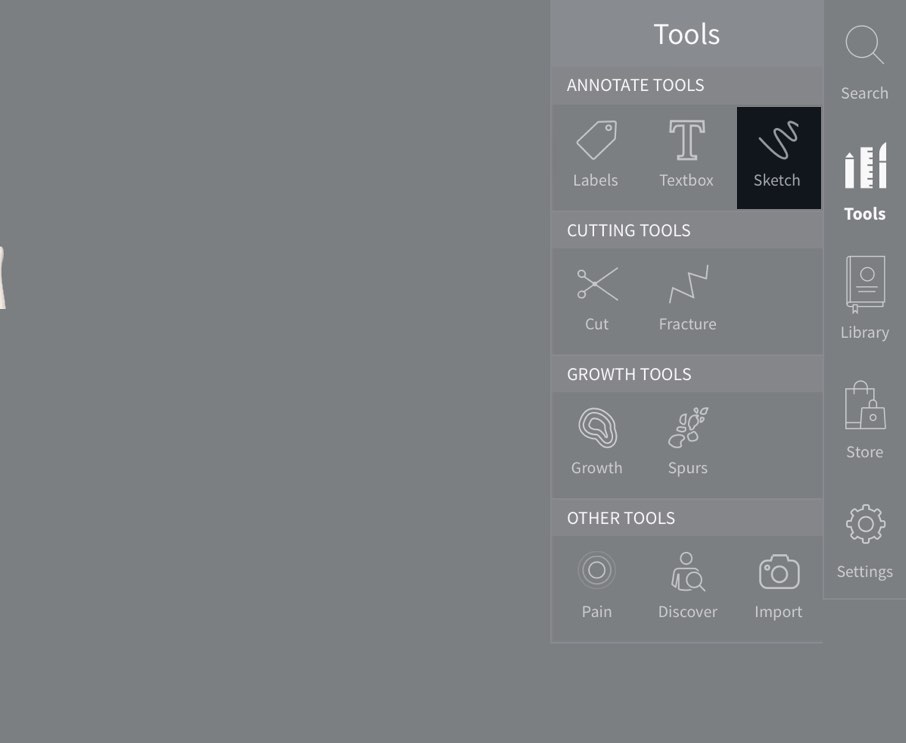
Access Sketch
To begin adding sketches, select Tools from the main menu, and select Sketch from the Tools menu.

Using Sketch
Drag your finger within the Sketch box to draw.
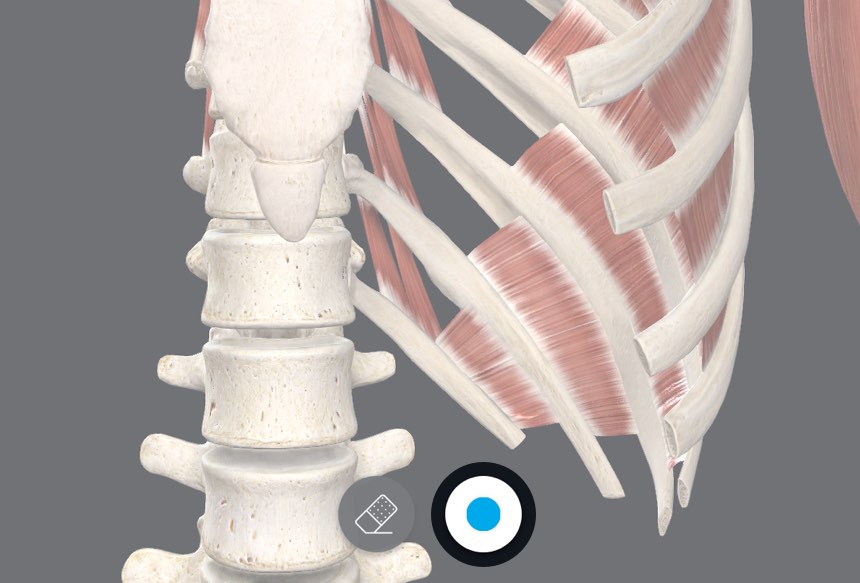
Sketch Options
Change the pen style using the options available by tapping the button at the centre of the bottom of the screen. The current style is previewed in the center of the button.
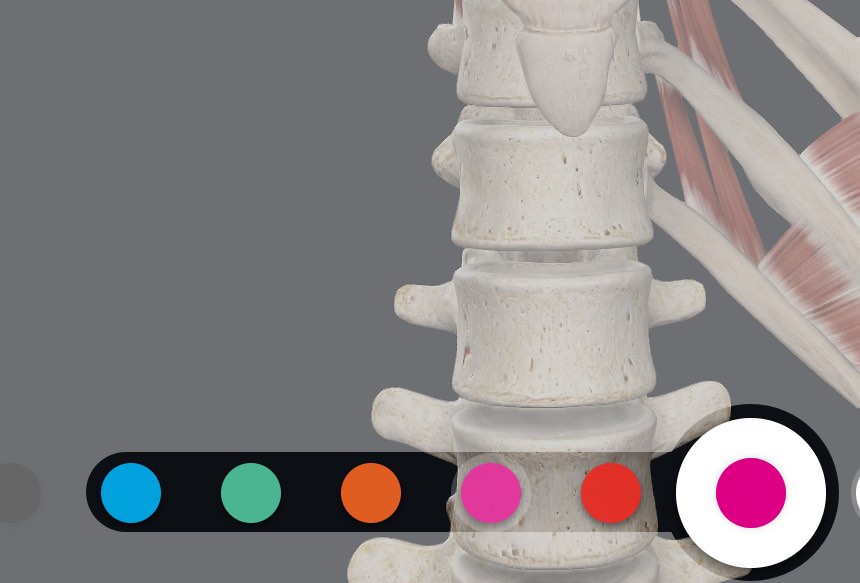
Stroke Color
Select a color from the array to the left of the options button.
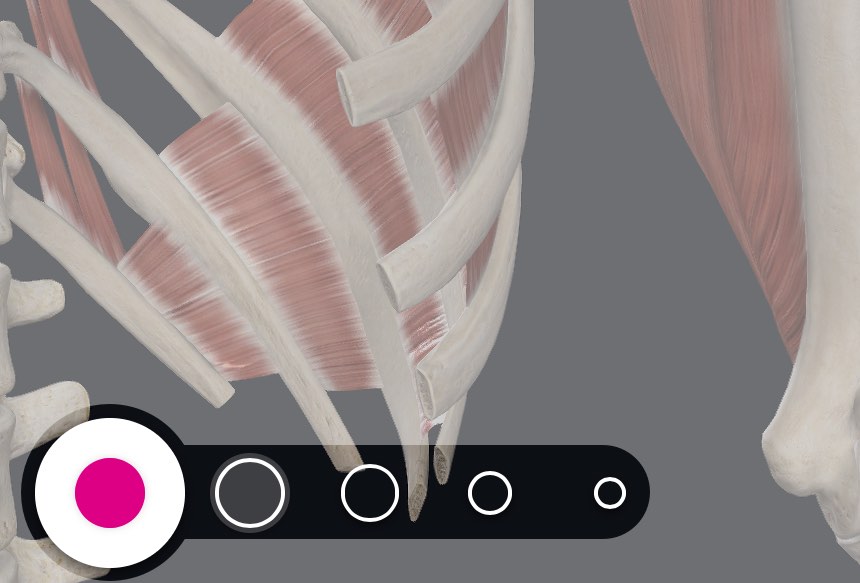
Stroke Size
Change the size of the stroke using the options to the right-hand side of the options button.
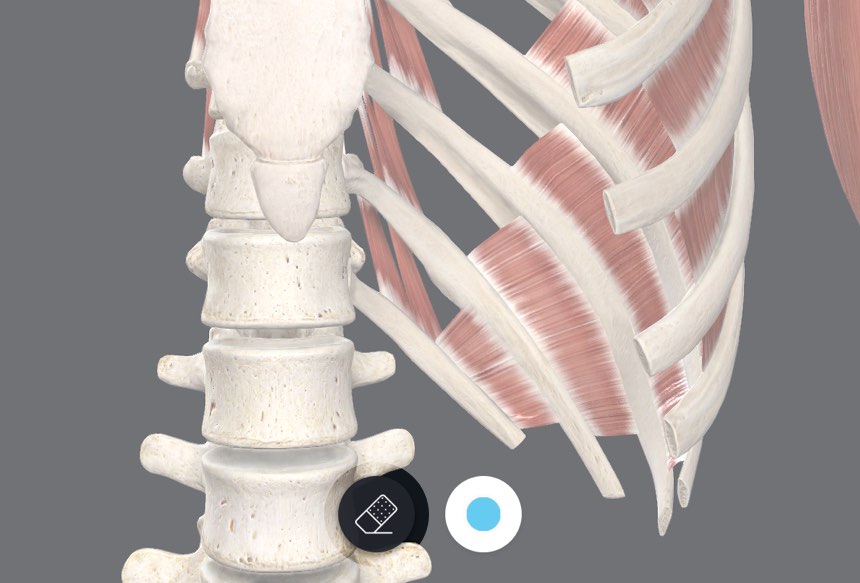
Erase Sketch
To erase the contents of a Sketch, tap the Erase button at the bottom of the screen.
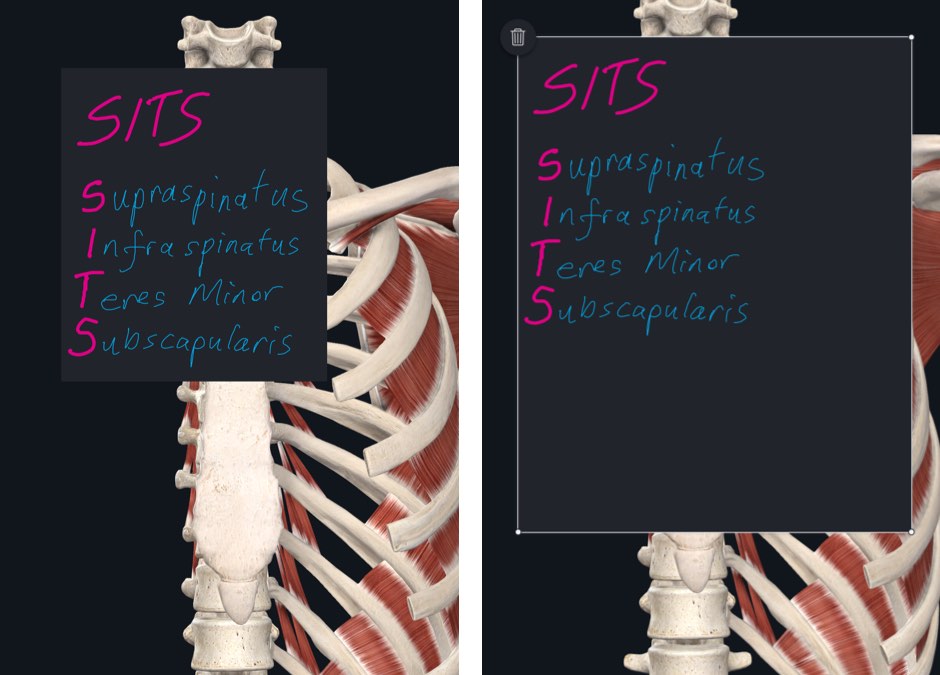
Resize Sketch
Grab and drag one of the Sketch corners to resize it.
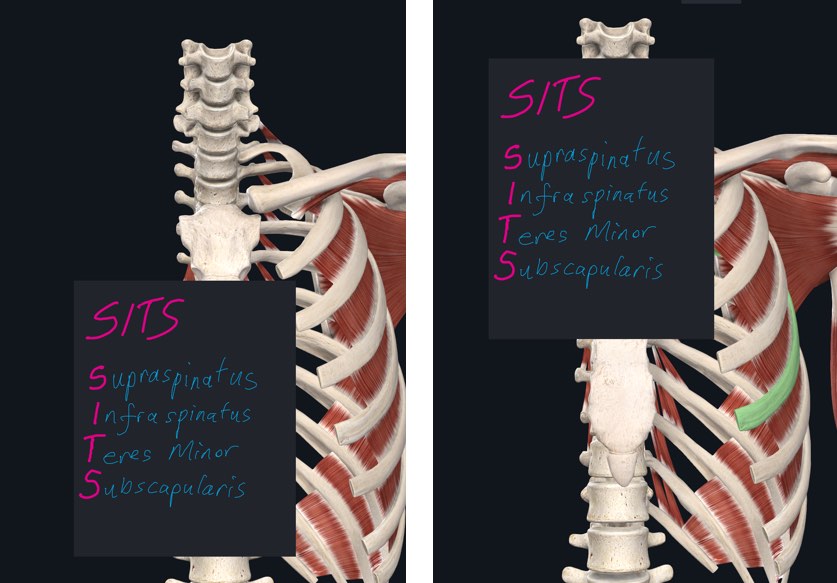
Move Sketch
Tap outside the Sketch to hide the resize indicators, and then drag it across the screen to your chosen location.
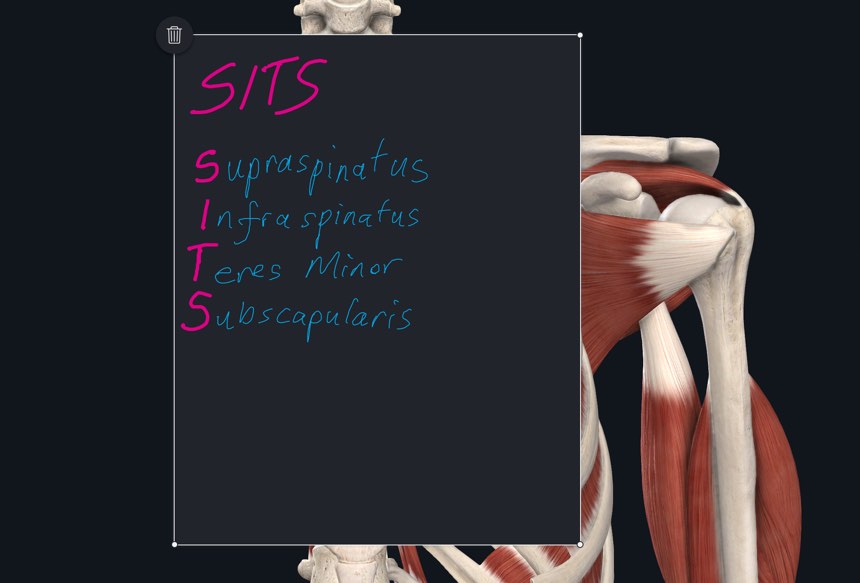
Edit Sketch
Tap a Sketch to make it active again, giving access to the resizing Tools. Tap the Sketch contents to begin additional drawing.
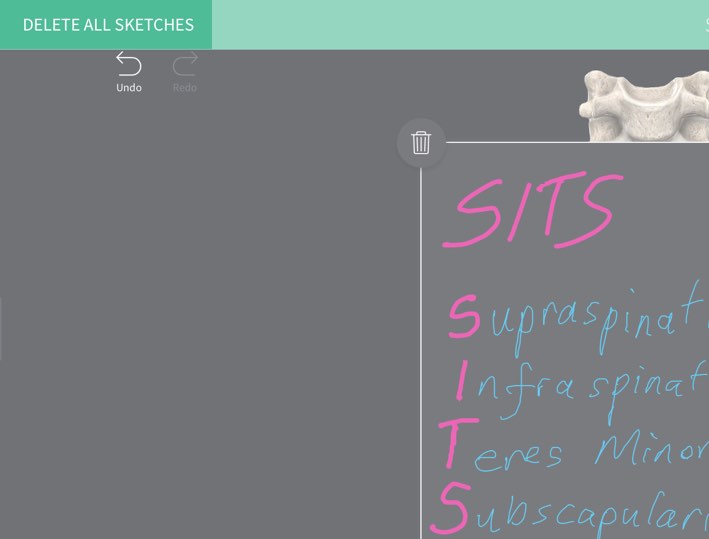
Clear Sketches
Remove individual Sketches using the button at the top left corner of the selected Sketch. At any point, select the ‘Clear’ button in the top left corner of the screen, and select to Clear Sketches or Clear All to remove all Sketches.