
Pain
Illustrate and animate points of Pain on the model
iPad, Mac, and Windows feature
Access Pain
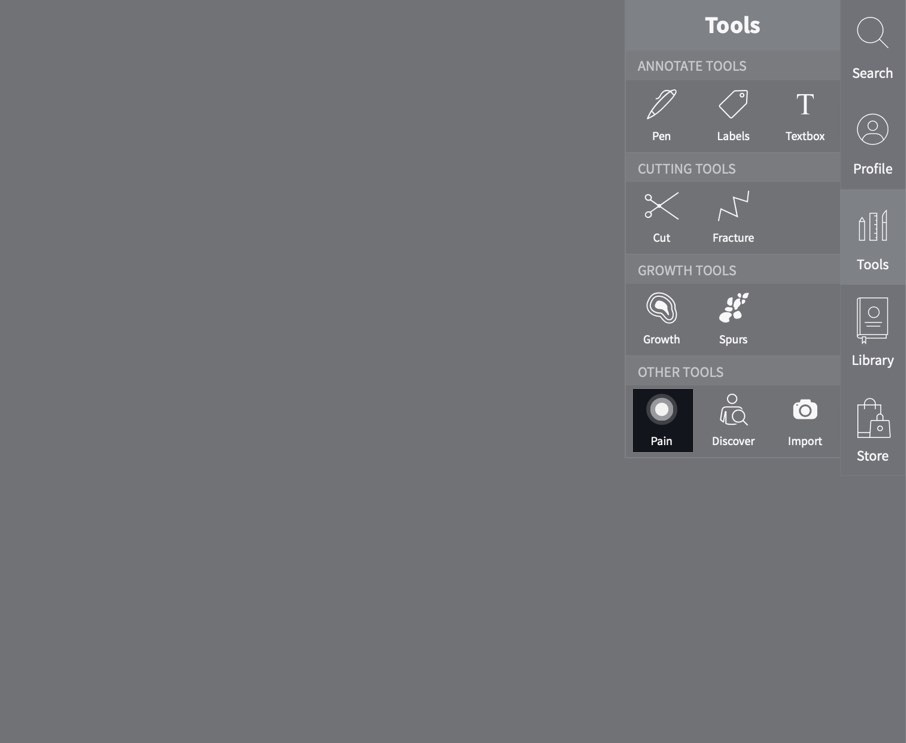
To begin adding pain points, select Tools from the main menu, and select Pain from the Tools menu.
Using Pain Sphere
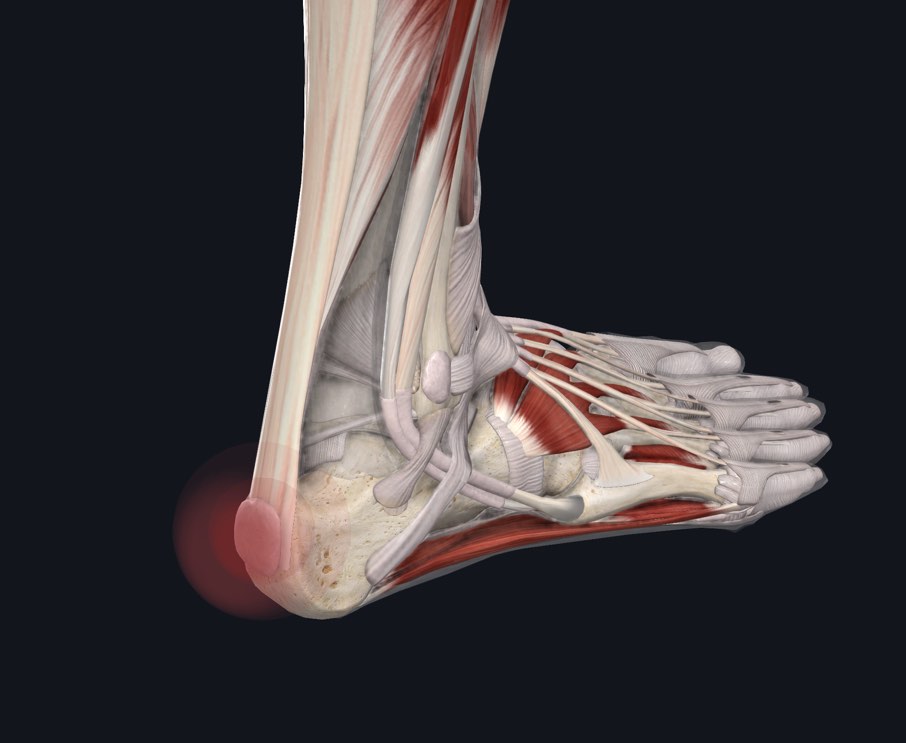
By default, the Pain sphere is selected. To add a Pain point, tap and drag on the model. The Pain will be centered around the point where you begin dragging, and will expand to the distance that you drag.
Pain Settings
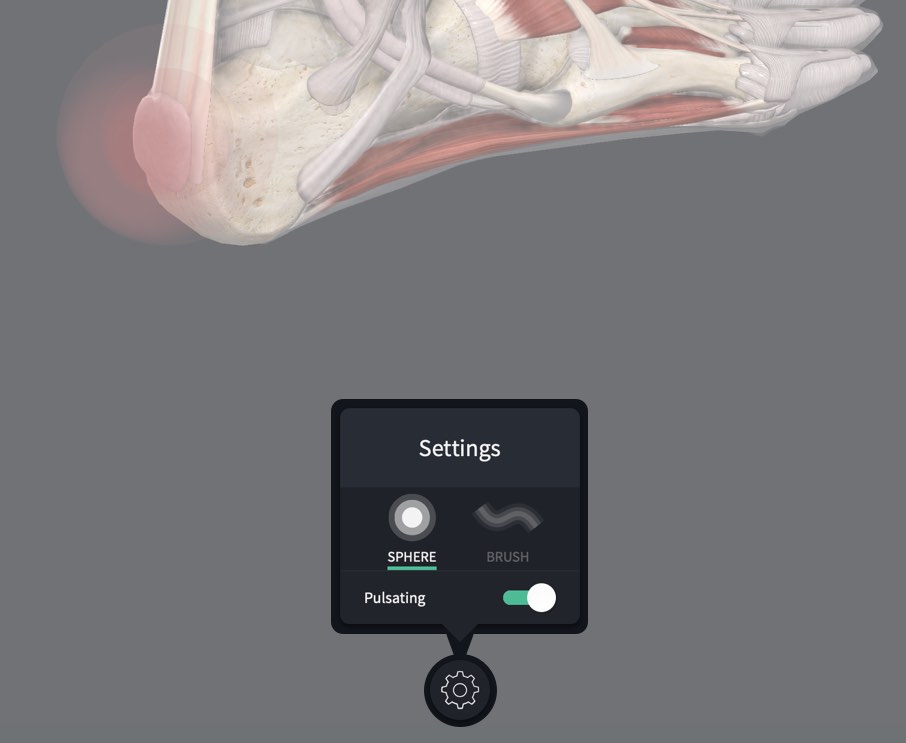
Access the Pain settings by tapping the button in the centre of the bottom of the screen. In the settings you can choose whether your Pain points should be animated in a pulsing motion, or stay still.
Pain Brush
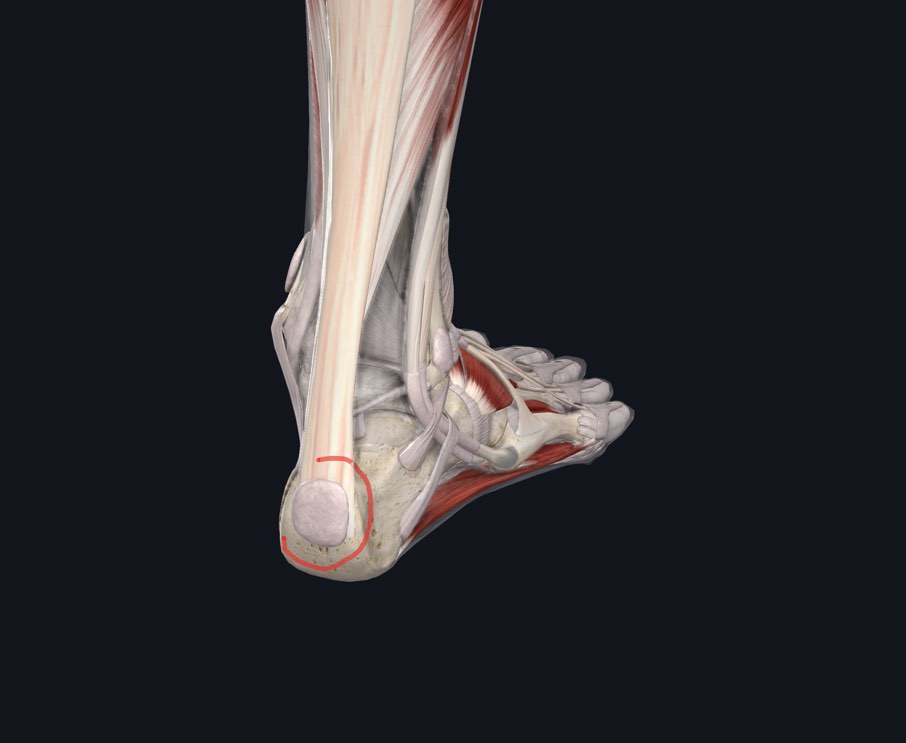
The Pain brush allows you to draw around an irregular area, and create a Pain point for that area. Select the brush option from the settings panel, and then draw around the area on the model.
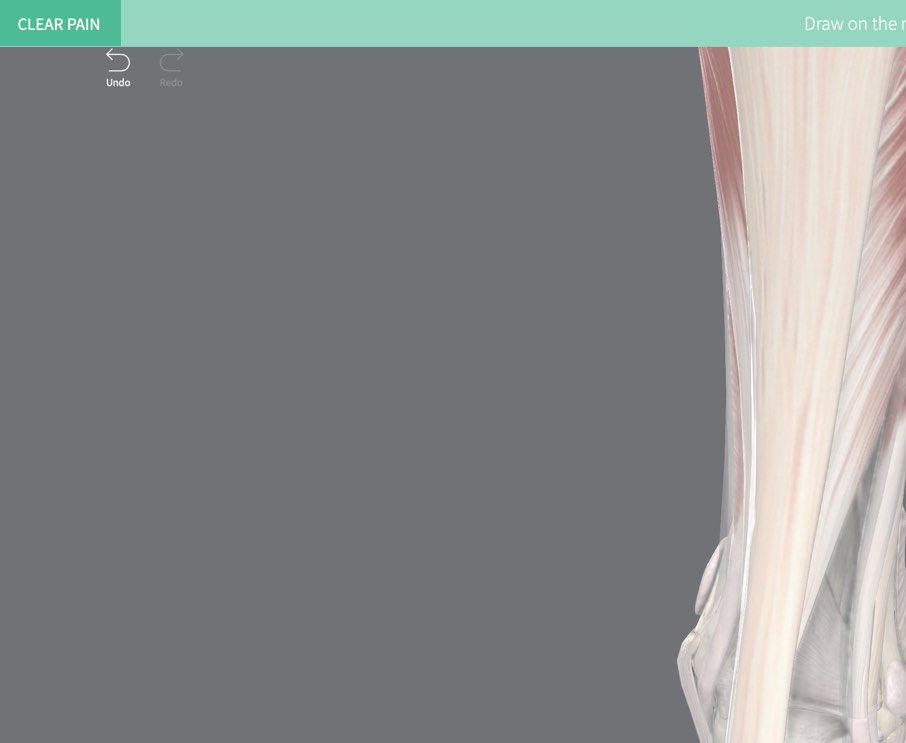
Clear Pain
When using the Pain tool, tap the ‘Clear Pain button in the top left corner of the screen to remove all pain points. You can undo an action by selecting ‘Undo’ at the top left corner of the screen.