
Muscle Motion
Animate the model to show the articulation of a muscle with the Motion function
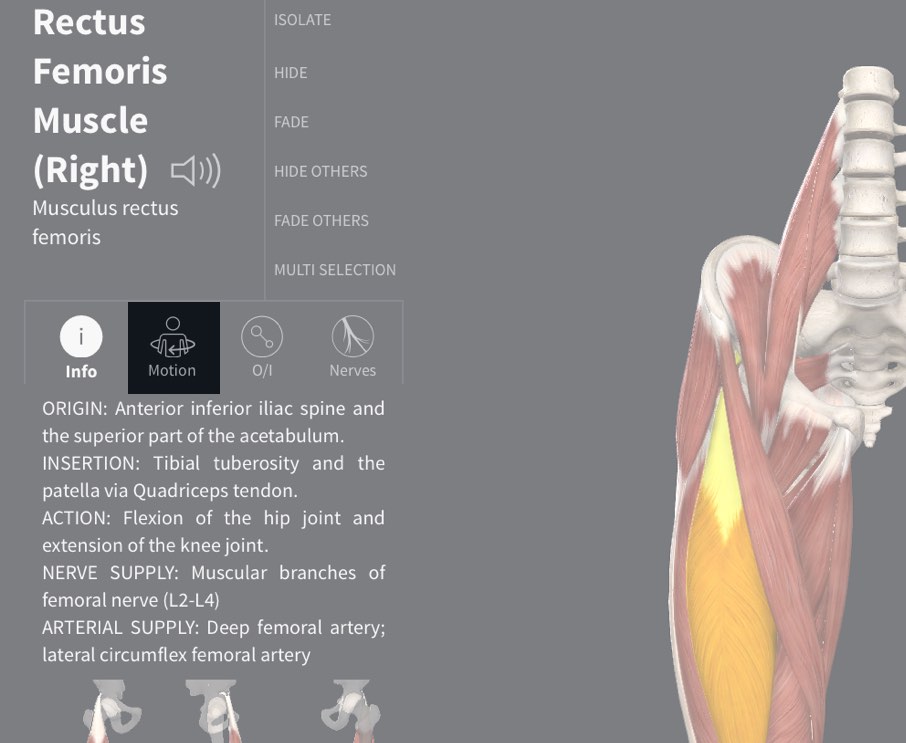
Access Motion
To see the movement of a muscle, select the muscle from the model. If the Motion feature is available for that muscle, you will see the Motion option appear in the Infobox under the muscle name.
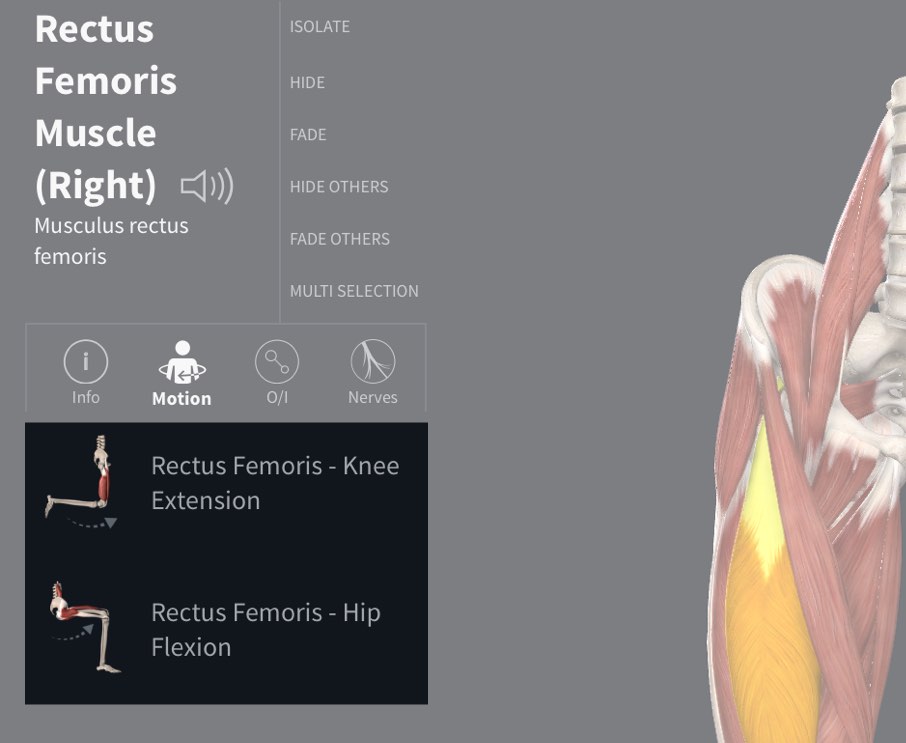
Select a movement
Select the Motion icon to view the movements associated with the selected muscle. Choose an option from the list which appears below. You will be taken into Motion mode to view the movement in action.
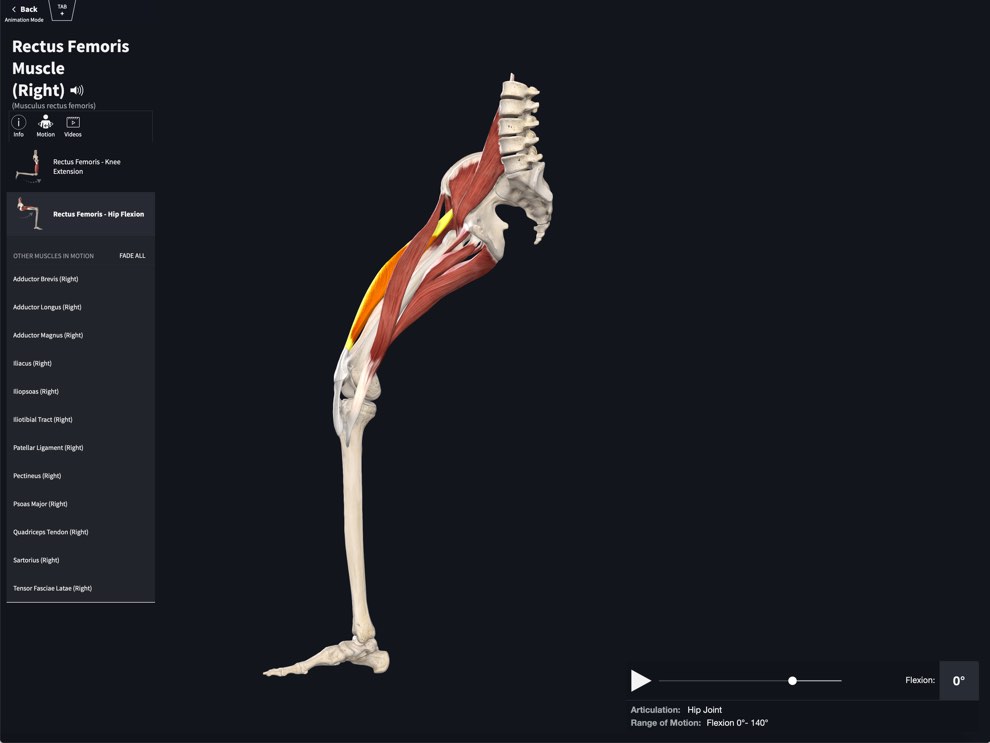
Viewing muscle motion
The selected motion will play automatically in Motion mode. From here, you can choose a different motion from the infobox on the left-hand side, control the motion using the controls at the bottom of the screen, or explore the motion by rotating and panning around the model.
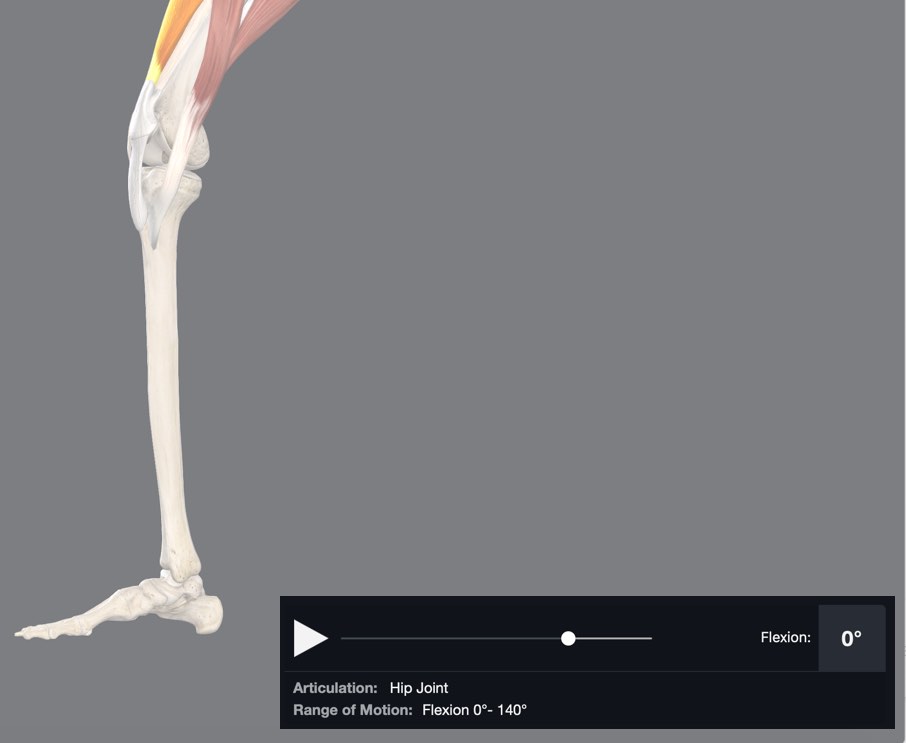
Controlling Motion
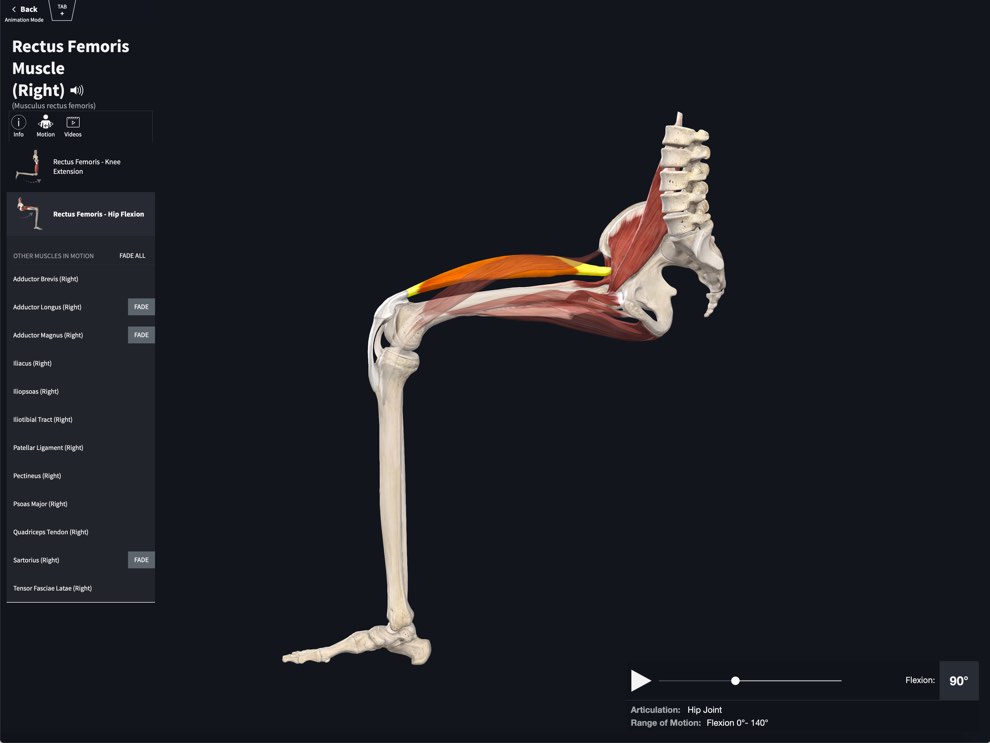
At the bottom of your screen, you will find the Motion control panel. This contains information about the movement, including articulation, range of motion, and the angle of the action. You can control the movement manually using slider, play and pause buttons.
Fading Muscles
You can fade muscles to see how the muscles behind them act during the motion. Simply click or tap on the muscle you want to fade and select the ‘Fade’ button in the Infobox.
Exploring the model
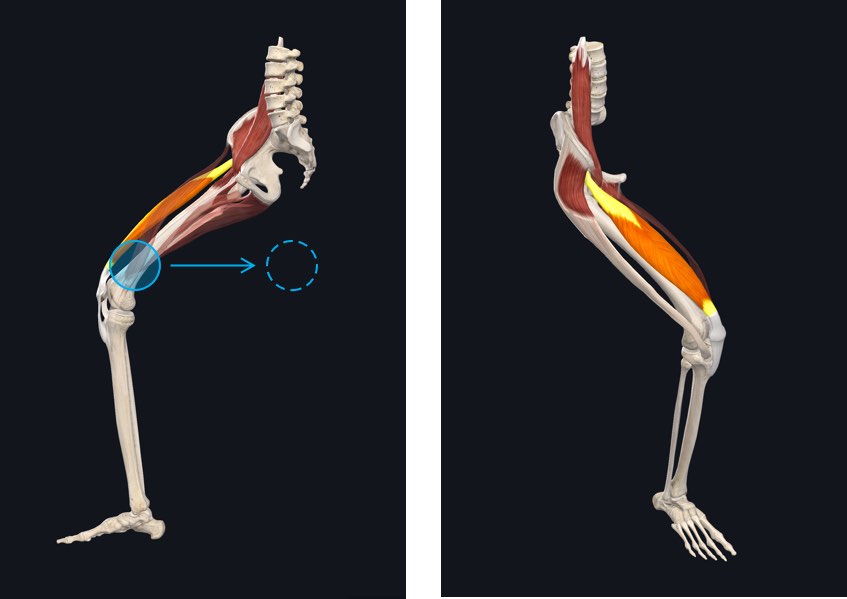
The model remains fully interactive and you may rotate, zoom, and pan to find your preferred angle.
Return to full model
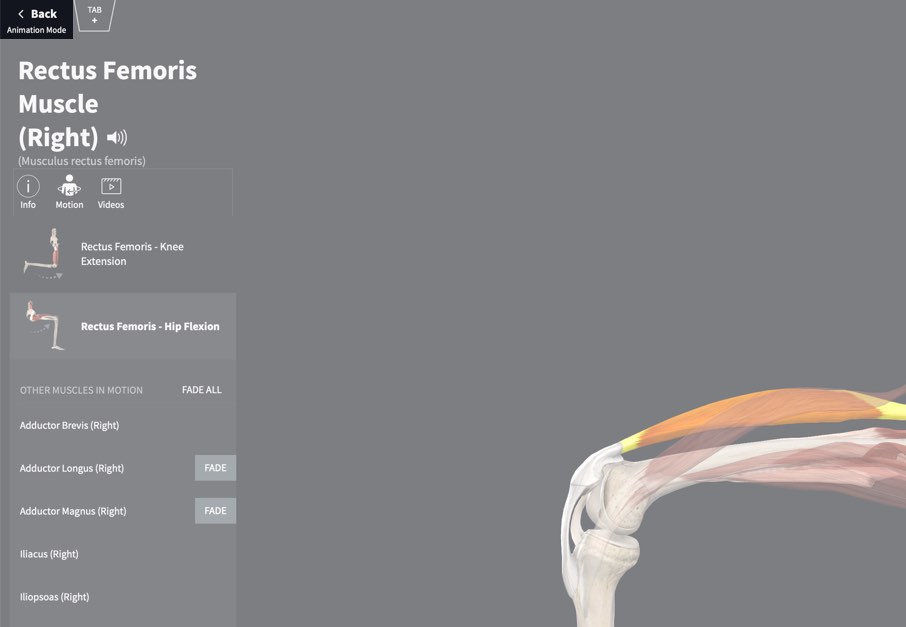
Tap Back in the top-left of the screen to return to the full model.