
Growth
Simulate pathologies by modelling cell growth on model structures.
iPad, Mac, and Windows feature

Access Growth
To begin adding growths, select Tools from the main menu, and select Growth from the Tools menu.
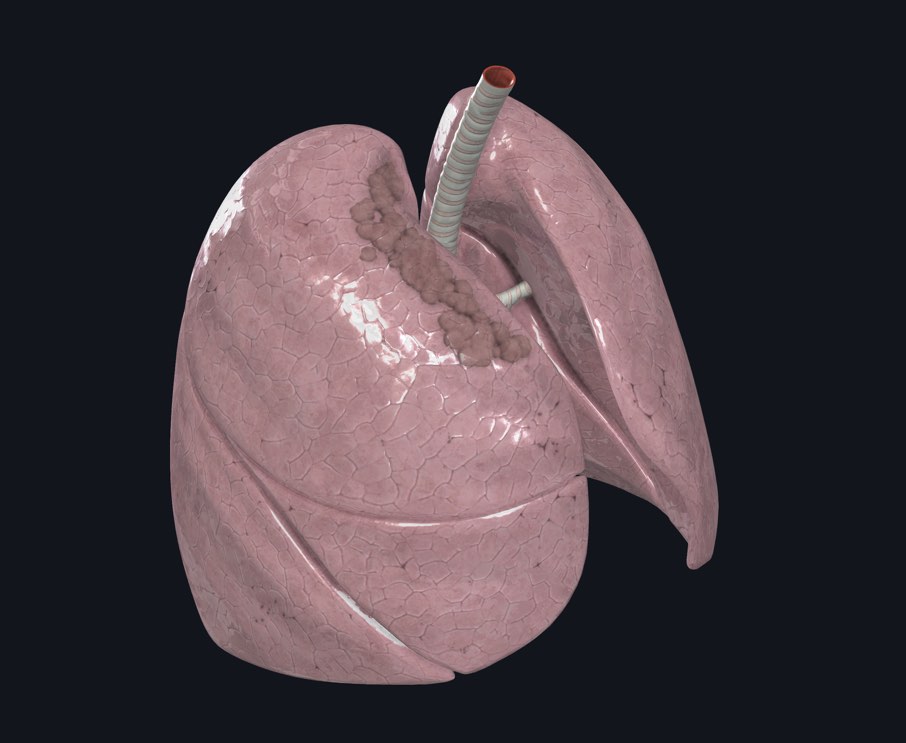
Using Growth
Draw on the model to begin adding growths.
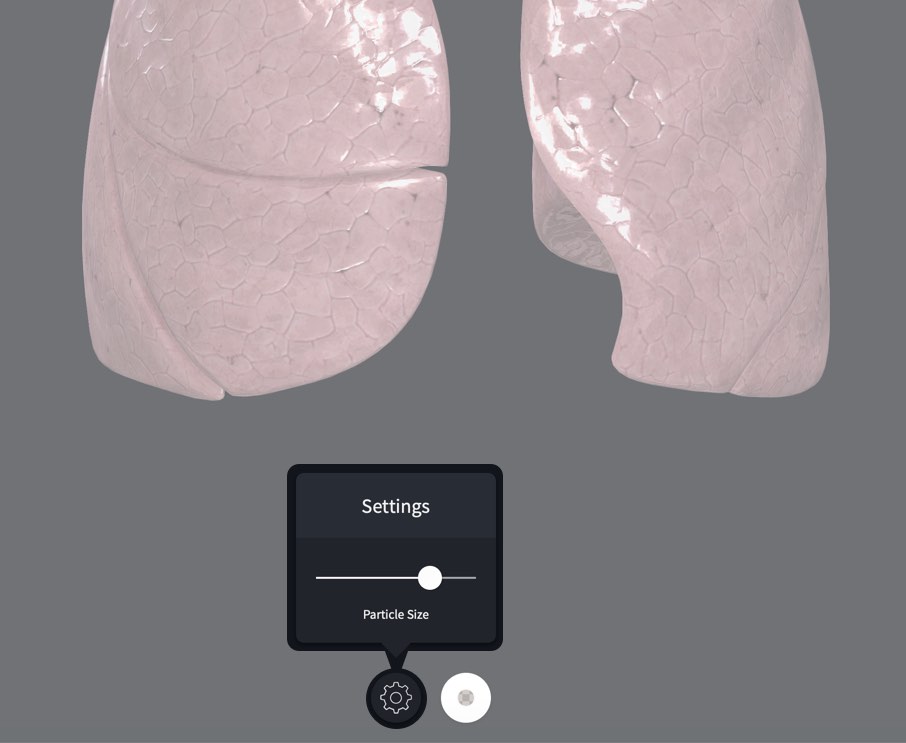
Particle Size
Tap the Settings button and drag the slider to change the size of the individual growth particles.
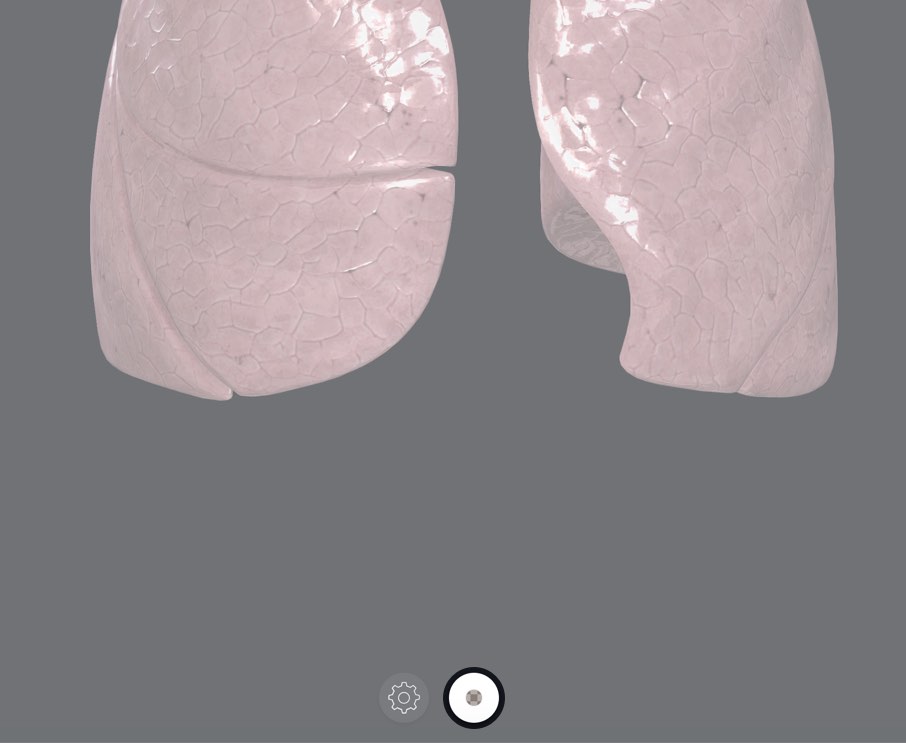
Growth Options
Change the growth style using the options available by tapping the button at the centre of the bottom of the screen. The current style is previewed in the center of the button.
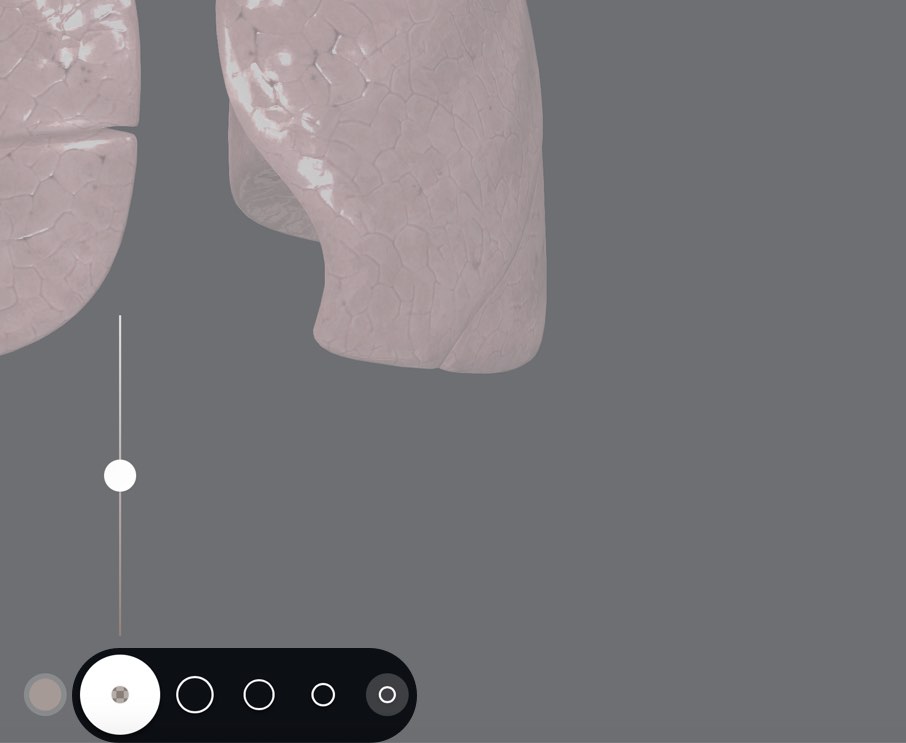
Growth Brush Size
Change the size of the Growth Tool using the options to the right-hand side of the options button.
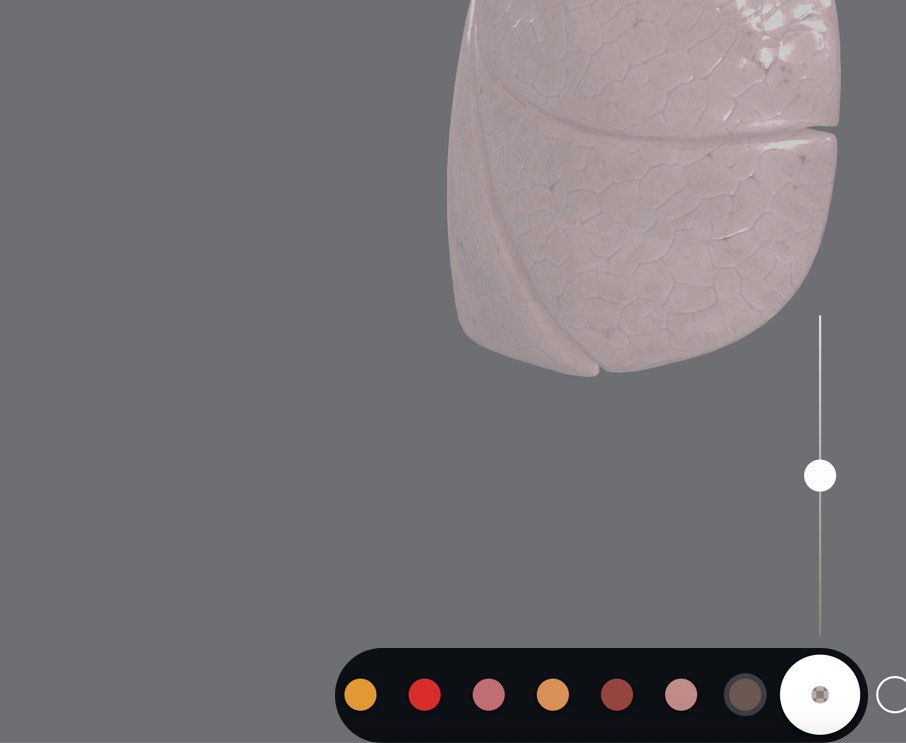
Color
Select a color from the array to the left of the options button.
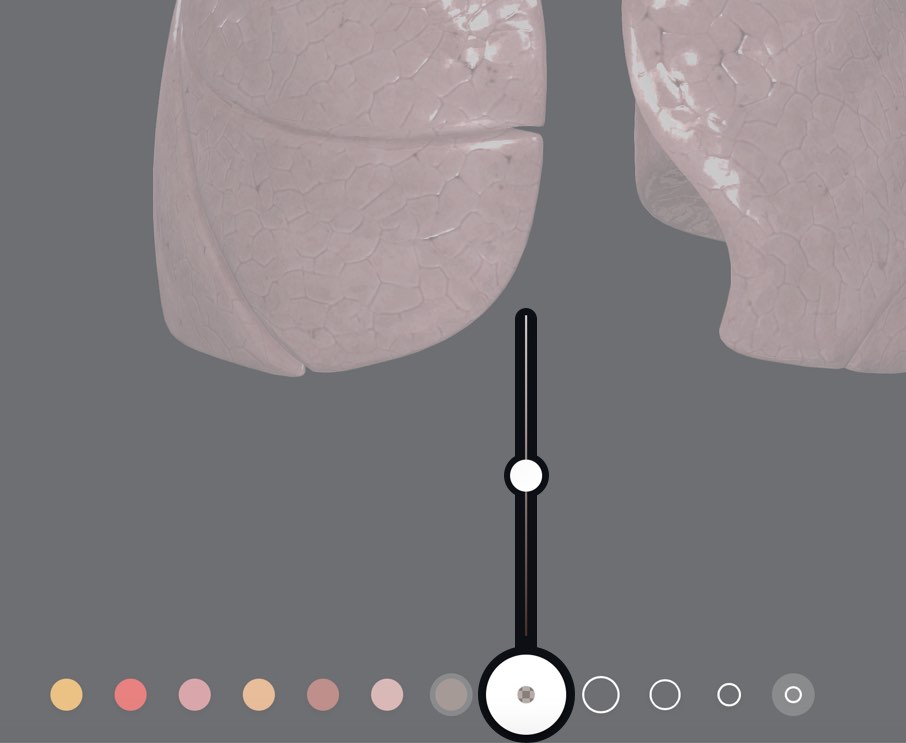
Opacity
Drag the slider above the options button to change the transparency of the Growth.

Clear Growth
When using the Growth tool, tap the ‘Clear Growths button in the top left corner of the screen to remove all growths. You can undo adding a growth by pressing the ‘Undo’ button on the top left of the screen.